Send Klaviyo reminder emails when shoppers click products in your videos
Connect Klaviyo to Shopvid and turn product clicks inside your videos into reminder emails.
When a shopper clicks a product in a video but leaves without buying, Shopvid sends a signal to Klaviyo. You build a flow in Klaviyo that emails the shopper with that same video.
The Klaviyo integration is available on the Pro plan. On the Free plan, the Klaviyo card shows a Pro badge and the Connect button reads Upgrade to Pro.
Before you start
- You need a Klaviyo account with permission to create private API keys.
- Your store needs a cookie banner that reports consent to Shopify. Shopvid only sends a signal after the shopper agrees to marketing.
- Turn on Klaviyo onsite tracking for your Shopify store. Without it, reminders only reach shoppers who are logged in.
Open the Klaviyo page
- In the Shopvid sidebar, click Integrations. If you don't see it, click View more first.
- On the Klaviyo card, click Manage. To watch a demo video of the integration first, click View demo next to it.
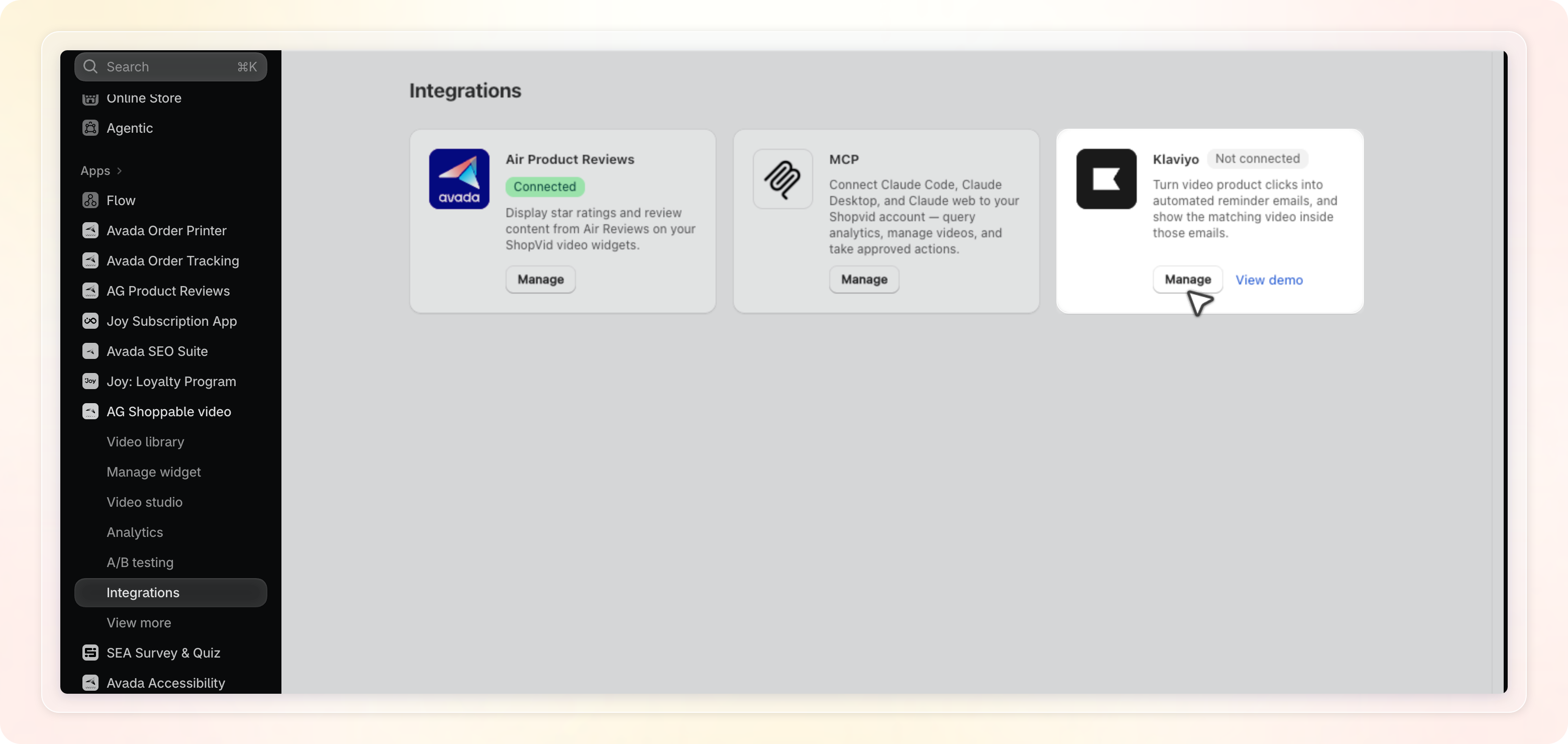
Connect your Klaviyo account
- In Shopvid, click Where do I find this key? under the Private API key field. The Klaviyo API keys page opens.
- Create a private API key with the Events (write) and Accounts (read) scopes. Events (write) sends the signals. Accounts (read) lets Shopvid confirm the key and show your account name. Klaviyo locks the scopes once the key exists.
- Back in Shopvid, paste the key into Private API key under Step 1. Connect your Klaviyo account. Private keys start with
pk_. - Click Connect.
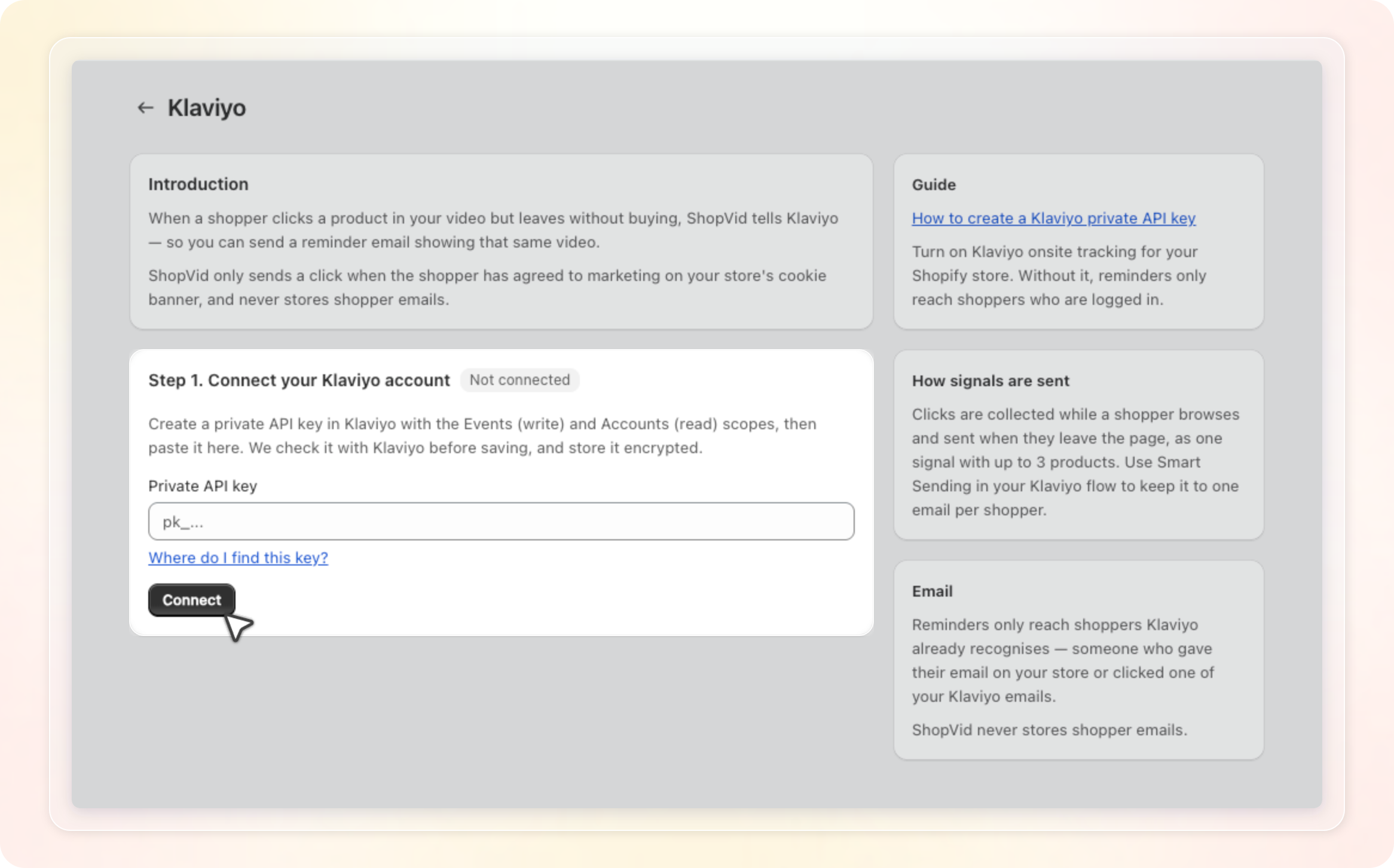
Shopvid checks the key with Klaviyo before saving it, then stores it encrypted. If the key is wrong or missing a scope, an error under the button tells you what to fix. For example, Shopvid rejects a public site ID with a reminder that private keys start with pk_.
Once connected, the badge next to Step 1 changes to Connected. The card shows your Klaviyo account name and the masked key. Two more cards appear below it:
- Signals sent to Klaviyo shows the total number of signals since you first connected. Klaviyo may show a slightly different number. Click Go to Klaviyo to open your Klaviyo dashboard.
- When a shopper clicks the video in an email lets you choose where the email link goes. See the next section.
Choose where the email link goes
Under When a shopper clicks the video in an email, pick one option:
- Open the product page takes the shopper straight to the product they clicked. This is the default.
- Open the page with the video takes the shopper back to the page where they watched. The page scrolls to the widget and plays the same video.
Shopvid saves your choice as soon as you click it. It applies to new signals only. Signals already sent keep the link they were created with.
Build the reminder flow in Klaviyo
Shopvid creates a Klaviyo metric named Clicked product in video. In Klaviyo, create a flow with this metric as the trigger, then add an email.
Each signal carries these properties you can use in the email:
| Property | What it holds |
|---|---|
products | Up to 3 products the shopper clicked most recently. Each one includes product_name, product_image, product_url, click_url, video_id, and video_gif_url. |
product_handles | The handles of those products. |
video_id and video_gif_url | The video behind the latest click and its animated GIF. |
product_url and click_url | The product page of the latest click, and the link to use in your email. click_url follows your choice under When a shopper clicks the video in an email. |
Use click_url as the link in your email so it follows that choice.
Two settings in Klaviyo keep the flow tidy:
- Add a flow filter that skips shoppers who placed an order after the click.
- Turn on Smart Sending so each shopper gets one email even when they trigger several signals.
What Shopvid sends and when
- A shopper clicks the product button on a product card in a video. The icon button and the text button both count. In the full screen product list, a click on the product image or the product name counts too. On mobile full screen, a tap counts when the card opens the product page or the product detail modal.
- Shopvid collects those clicks while the shopper browses. When the shopper leaves the page or switches tabs, Shopvid sends one signal. It holds up to 3 of the most recent products.
- The GIF comes from the video itself. Shopvid renders a short loop from the clip, at most 1 MB, and stores it in your store's Files. The first signal for a video goes out without a GIF while it renders. Later signals include it.
Who receives the email
- Shopvid sends a signal only when the shopper has agreed to marketing on your store's cookie banner. If the shopper withdraws consent, Shopvid drops any clicks it has not sent yet.
- Shopvid matches a logged in shopper to the Klaviyo profile with their email.
- Shopvid matches a guest shopper only when Klaviyo already knows them. That means Klaviyo onsite tracking is on. The shopper also left their email on your store before, or clicked one of your Klaviyo emails.
- Shopvid never stores shopper emails.
Disconnect Klaviyo
- Open the Klaviyo page from Integrations.
- Under Step 1. Connect your Klaviyo account, click Disconnect.
Shopvid stops sending signals straight away. Your Klaviyo flow and the signals already sent stay in Klaviyo.
Plan and limits
- If your store moves from Pro to Free, Shopvid stops sending signals. Move back to Pro and sending resumes. You don't need to connect again.
- Shopvid sends at most 5,000 signals per store per day. The counter resets at 00:00 UTC. Past the limit, Shopvid pauses until the next day without showing a notice in the app.
- If Shopvid can no longer read your saved key, the Klaviyo page shows a warning. Paste the key again to reconnect.
Tips
- Create a private API key for Shopvid alone. If a scope is missing, create a new key. Klaviyo locks scopes after creation, so you can't edit the old one.
- Check Signals sent to Klaviyo a day after connecting. A count stuck at zero usually has two causes. Either your cookie banner is not reporting consent to Shopify, or no shopper has clicked a product yet.
- Pick Open the page with the video when you want shoppers back on the landing page with your widget.