Catalog sync
Instead of wondering whether Google and Meta have your latest prices, see what the app has read from Shopify on one page, and refresh it in one click or on a schedule.
What is Catalog sync?
Your feeds are built from a copy of your Shopify catalog that the app keeps. Catalog sync shows how fresh each part of that copy is, and lets you refresh it. You'll find it in the app menu under Catalog sync.
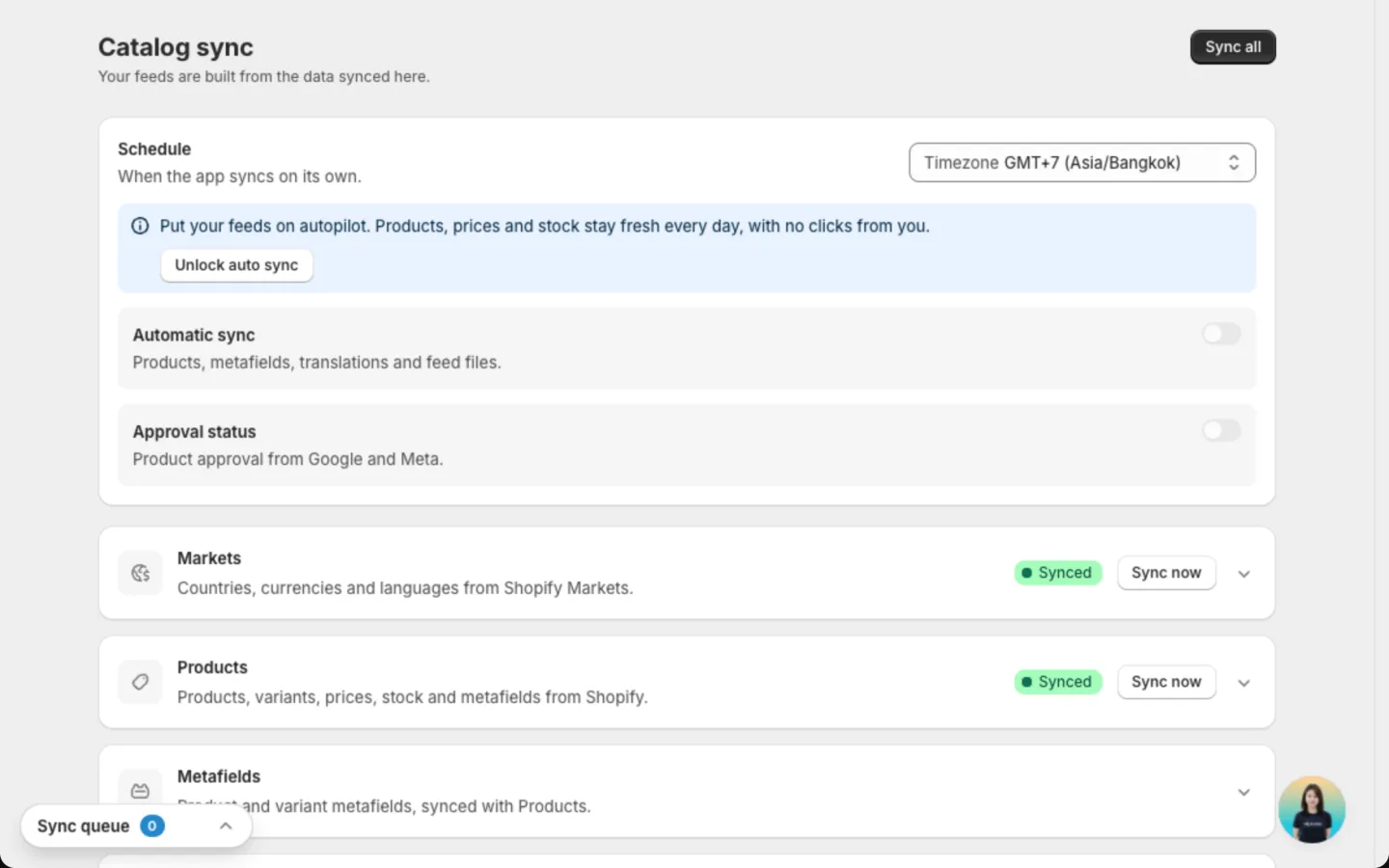
Each kind of data has its own card:
| Card | What it keeps up to date | Button |
|---|---|---|
| Markets | Countries, currencies and languages from your Shopify Markets | Sync now |
| Products | Products, variants, prices, stock and metafields | Sync now |
| Metafields | The extra product details your feeds can use. They update together with Products | — |
| Translations | Product text in your store's other languages | Sync now |
| Feed files | The files Google, Meta and other platforms collect | Regenerate |
A badge on each card tells you where it stands:
| Badge | What it means | What to do |
|---|---|---|
| Synced | The data is up to date. | Nothing. |
| Syncing / Generating | The app is working on it. | Wait a few minutes. |
| Waiting | It starts as soon as the other parts finish. | Nothing. |
| Failed | The last run did not finish. | Click Sync now or Regenerate again. |
| Not synced | The app has not read this data yet. | Click Sync now. |
Translations shows Not needed when your store has one language. Feed files shows No feeds until you create a feed.
How to refresh your data
Open Catalog sync
Go to Catalog sync in the app menu.
Refresh one part, or everything
Click Sync now on the card you want to update. To refresh every card in one go, click Sync all at the top of the page. On Feed files, click Regenerate to rebuild your feed files.
Check it worked
Wait for the badge to turn Synced. Click the arrow at the right of a card to see how much the app brought in, like the number of products or markets.
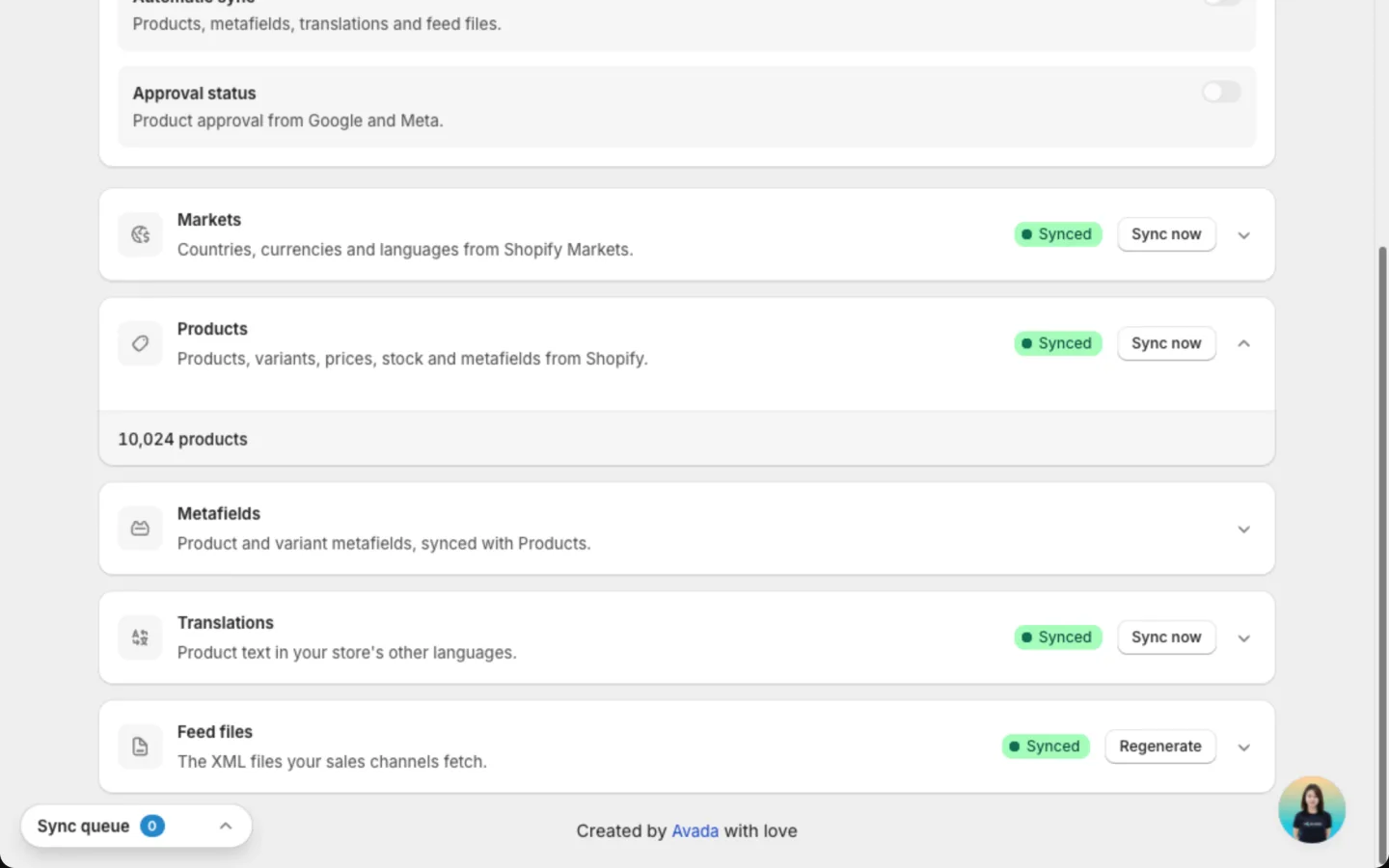
Feed files always go last. While other parts are still syncing, Feed files waits, then rebuilds with the newest data. Nothing changes in your Shopify store. The app only reads from it.
A Sync queue box in the corner of the app shows what is running, on any page.
Set a schedule
Keep prices, stock and new products fresh on your channels without clicking anything. The Schedule card holds two switches:
- Automatic sync refreshes your products, metafields, translations and feed files.
- Approval status brings back which products Google and Meta approved, so you see what is showing.
Unlock automatic sync
Automatic sync is locked when you install the app. Click Unlock auto sync in the Schedule card. A chat with our team opens with a message ready to send. Send it, and we turn it on for your store.
Pick your timezone
Choose the Timezone both schedules run on.
Turn on Automatic sync
Switch on Automatic sync. Pick a Frequency (Once a day or Once a week) and a Time.
Turn on Approval status
Switch on Approval status. Pick a Frequency, from Every 4 hours to Once a week, and when it starts.
Save
Click Save in the bar at the top. Click Discard to undo your changes.
A scheduled sync starts within about an hour after the time you picked.
Choose which metafields your feeds use
Metafields are extra product details you store in Shopify, like material or GTIN (the barcode number Google uses to identify a product). Use them in your feeds, so Google and Meta get complete product data with no copy-paste.
Open the Metafields card. The table lists each metafield with its Key, how many Products have a value, and whether it is Visible. Use the All, Visible and Hidden tabs or Search metafields to find one.
Select the metafields
Tick one or more rows. The bar above the table shows how many you selected.
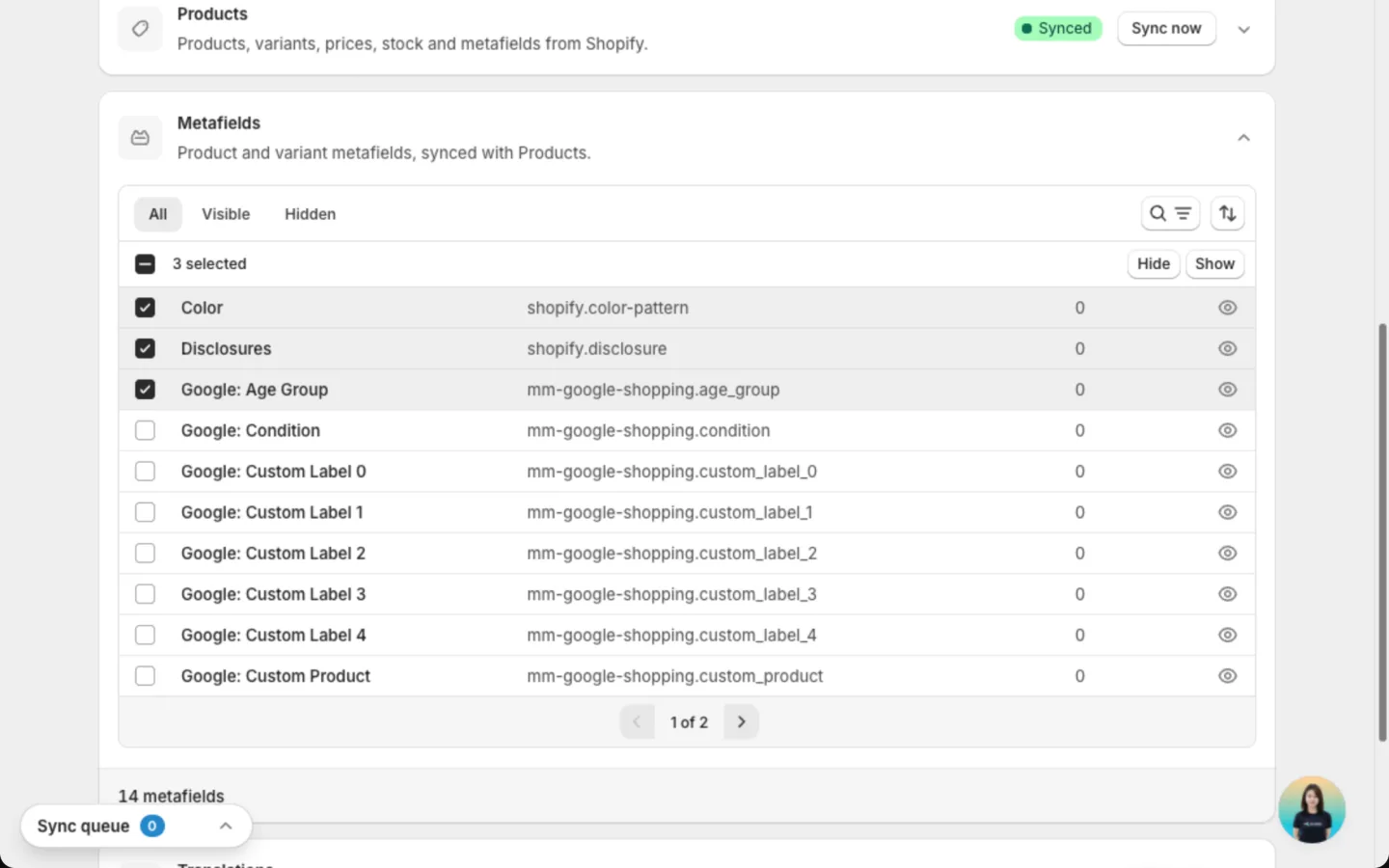
Hide or show them
Click Hide to leave them out of your feeds, or Show to bring them back. For a single metafield, click the eye icon on its row. These save right away.
To add a visible metafield to a feed, insert it as a variable in the feed's attributes. See Create a feed.
Good to know
- Metafields have no Sync now button of their own. They refresh each time Products syncs.
- A metafield you just showed gets its values at the next product sync.
- The schedule here is when the app reads your store. The Fetch frequency on each feed is when Google or Meta collects the file. Both need to run for a change to reach your ads.
- With automatic sync off, Google and Meta still collect your file on schedule, but the file only changes when you sync or click Update feed on a feed.
FAQs
Why didn't my Shopify price change show up on Google yet?
The change reaches your feed at the next sync, then Google collects the file at its next fetch. To speed it up, click Sync all here, or open the feed and click Update feed.
Why are the schedule switches greyed out?
Automatic sync is locked at install. Click Unlock auto sync in the Schedule card to ask our team to turn it on.
Does syncing change my Shopify store?
No. The app only reads your products. It never edits them.
Where did the sync schedule and metafields in Settings go?
They moved here. Settings now only holds your Google and Meta connections.
Still have questions?
Chat with us from the app, any time. See also Feed details and Limits and FAQ.