Manage feeds
Instead of checking Google and Meta one account at a time, see every feed's health and last sync in one list, and fix the weakest feed first.
What is Manage feed?
Manage feed lists every feed your store shares with Google, Meta or another platform. You'll find it in the app menu under Manage feed. From here you create, open, copy and delete feeds.
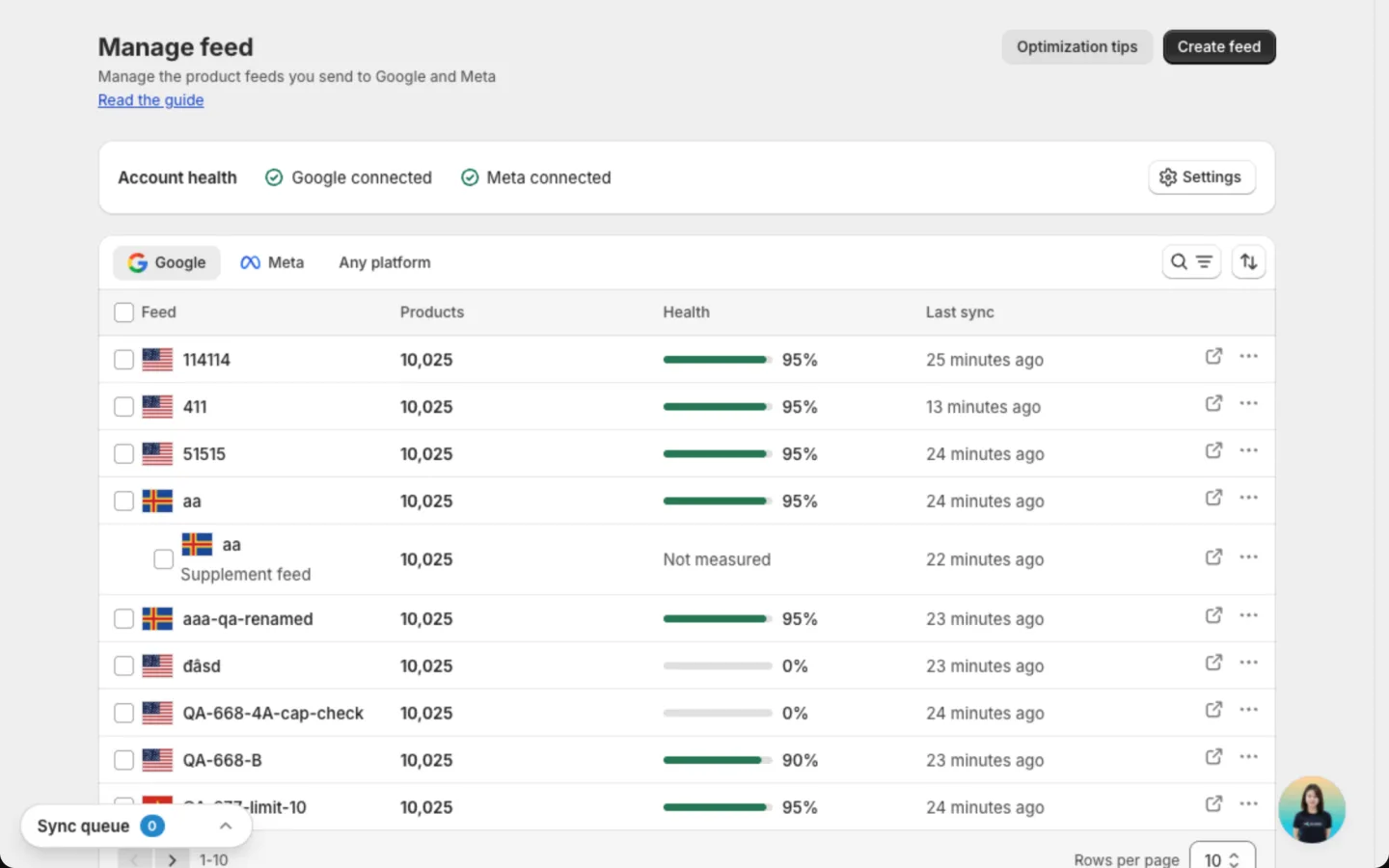
The Account health card above the list shows whether Google and Meta are connected. Click Settings to connect or manage an account.
Find a feed
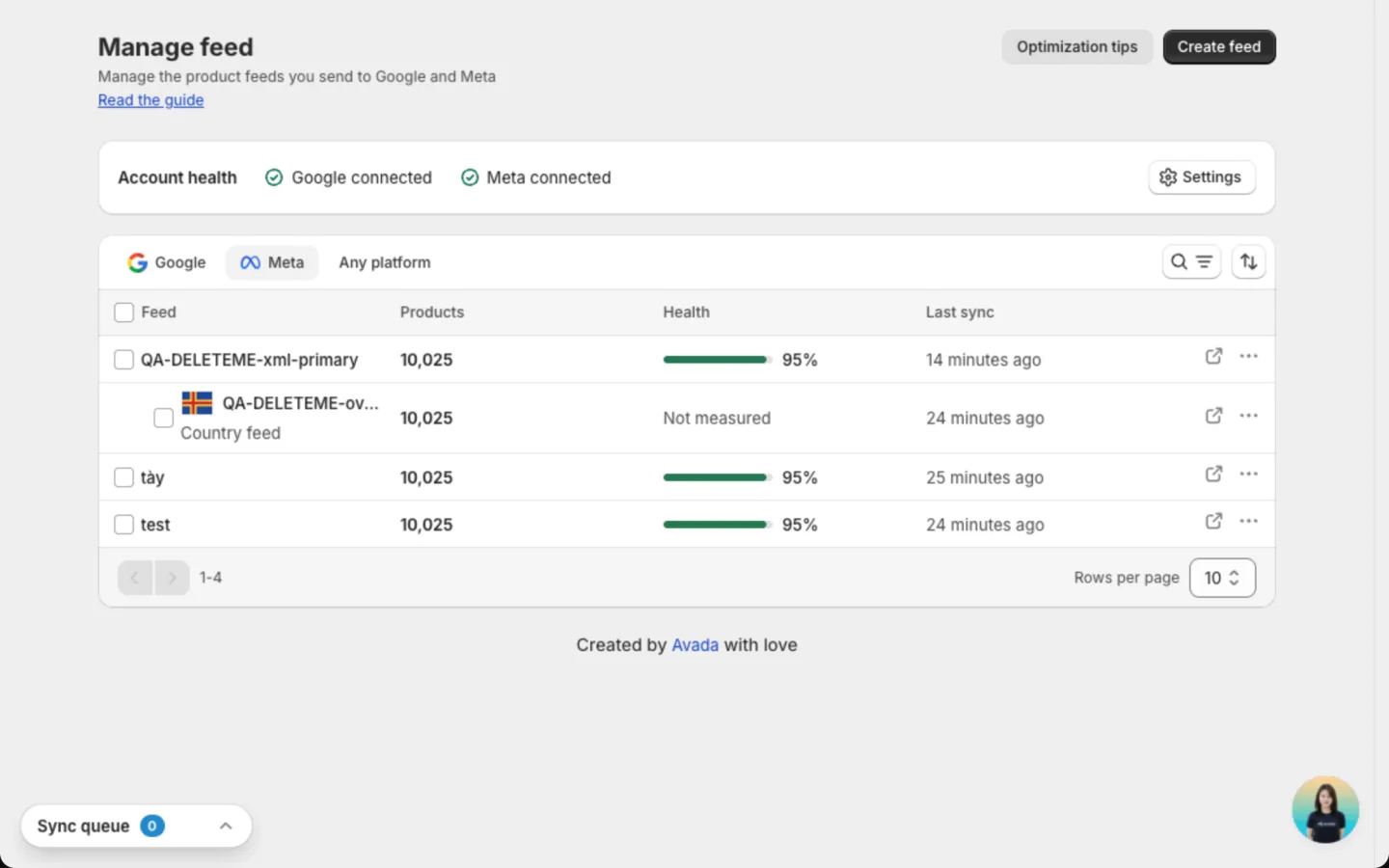
Switch between the Google, Meta and Any platform tabs. Use Search feeds to find one by name, or sort by Feed or Products.
| Column | What it shows |
|---|---|
| Feed | The feed name, with a flag for its market. A supplement or localize feed sits under the feed it adds to |
| Products | How many products the feed covers |
| Health | The share of products with no blocking problem. Higher means more products can show in ads. Shows Not measured for supplement and localize feeds |
| Last sync | When the app last updated the feed file. Shows Never for a feed that hasn't synced yet |
Click a feed to open its page, where you follow the sync and fix product problems. The account or catalog a feed publishes to, and its approval results, are on that page. See Feed details.
On the Meta tab, only country and language feeds carry a flag. A main Meta feed has none, and neither do Any platform feeds.
Open a feed on Google or Meta
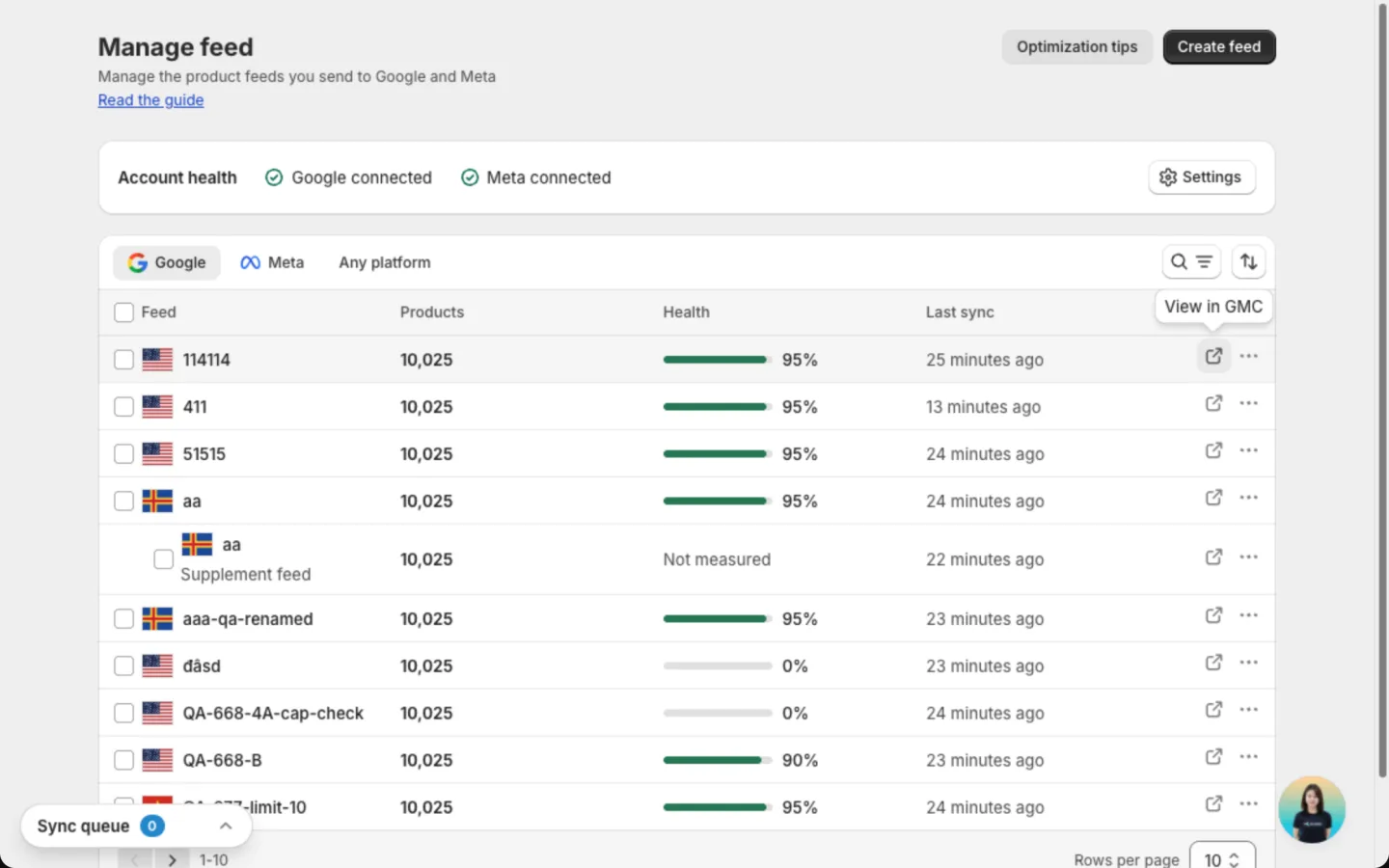
Instead of opening Merchant Center or Commerce Manager and searching for your feed, jump straight to it. Click the arrow icon next to the three-dot button at the end of a feed's row.
- On the Google tab, it reads View in GMC and opens the feed in Merchant Center.
- On the Meta tab, it reads View in Commerce Manager and opens the catalog.
Any platform feeds have no icon, because the app doesn't connect to those platforms.
Click Optimization tips at the top of the page for quick advice on getting more products approved.
Act on a feed
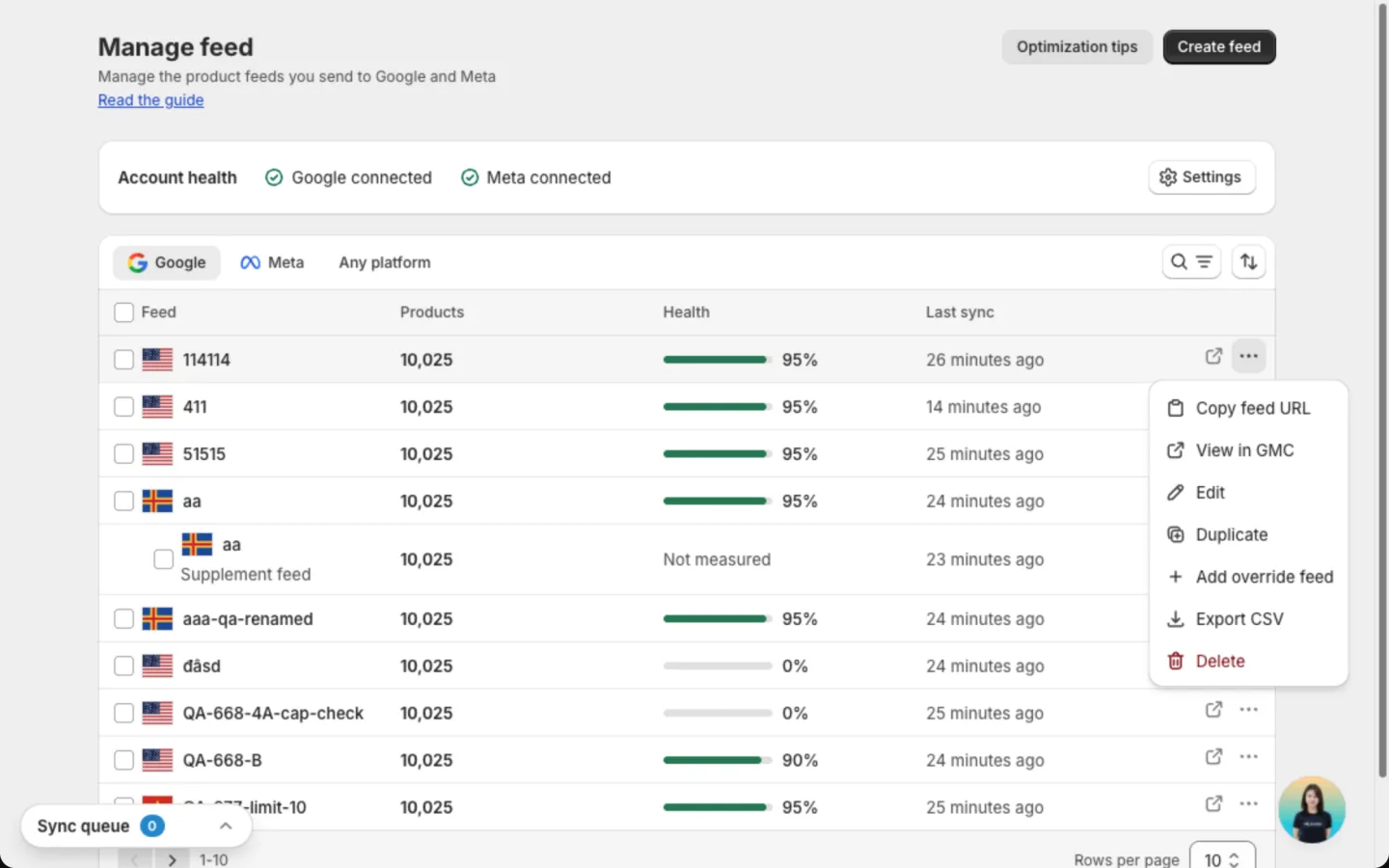
Click the three-dot button on a feed's row. Depending on the feed, you see:
| Action | What it does |
|---|---|
| Copy feed URL | Copies the link to the feed file. Paste it into Merchant Center or Commerce Manager if your account isn't connected, or into any other platform for an Any platform feed |
| View in GMC / View in Commerce Manager | Opens the feed's products on Google or Meta |
| Edit | Changes the feed's settings |
| Duplicate | Copies all settings into a new feed. Handy for a similar feed |
| Add override feed | Starts a new feed on top of this one. On Google, it opens the supplement form. On Meta, it adds a local price or translated text for one market. See Create a feed |
| Export CSV | Downloads the feed's products as a spreadsheet file |
| Delete | Removes the feed from the app |
Create a feed
Click Create feed at the top of the page. Pick Google, Meta or Any platform, then the form walks you through market, products and product details. See Create a feed.
Delete a feed
Choose the feed
Click Delete in the feed's row menu. To delete several feeds, select them and click Delete in the bar that appears.
Decide what happens on Google or Meta
To take the products off the channel too, check the box that starts with Also delete its products. On a Google feed, the box instead removes the feed file from Merchant Center. Leave it unchecked to keep the products live.
Confirm
Click Delete.
You can't undo a delete. Localize feeds attached to it are deleted too. If you left the box unchecked, products already on Google or Meta stay until you remove them there.
FAQs
Does deleting a feed remove my products from Google or Meta?
Only if you check the box in the delete dialog. Leave it unchecked and the products stay live on the channel.
Does deleting a feed change my Shopify store?
No. Your Shopify products stay exactly as they are.
Why is the Create feed button greyed out?
Your store has reached 10 feeds. Delete a feed you no longer use, or click Contact us in the banner to raise the limit. When you get close, a banner shows how many feeds you have used, with a Raise limit button.
Still have questions?
Chat with us from the app, any time.