Create a Google Shopping feed
Instead of adding products to Merchant Center by hand, create one Google feed. The app adds it to your Merchant Center account, and Google picks up your latest prices and stock every day.
What is a Google feed?
A Google feed is your product list for Google Shopping in one market. The app keeps it as a file online and adds it to your Merchant Center, Google's account where your product listings live. Google collects the file at the time you pick, reviews each product, then shows approved ones in Shopping results, free listings and Shopping ads.
The path to sales is: approved products → your listings show → shoppers click → orders. The app helps with the first step: getting as many products approved as possible.
Google needs a Merchant Center account with your website verified and claimed, plus shipping and return settings. Without them, Google may reject every product. You set these up in Merchant Center, not in the app.
Before you start
- Connect your Google account and pick your Merchant Center account in Settings. Not connected yet? You can still create the feed, copy its link with Copy feed URL, and add it in Merchant Center yourself.
- Set up your markets in Shopify. The countries, languages and currencies you can pick come from your Shopify Markets.
- Check your feed count. At 10 feeds, the Create feed button is greyed out.
Set it up
Choose Google
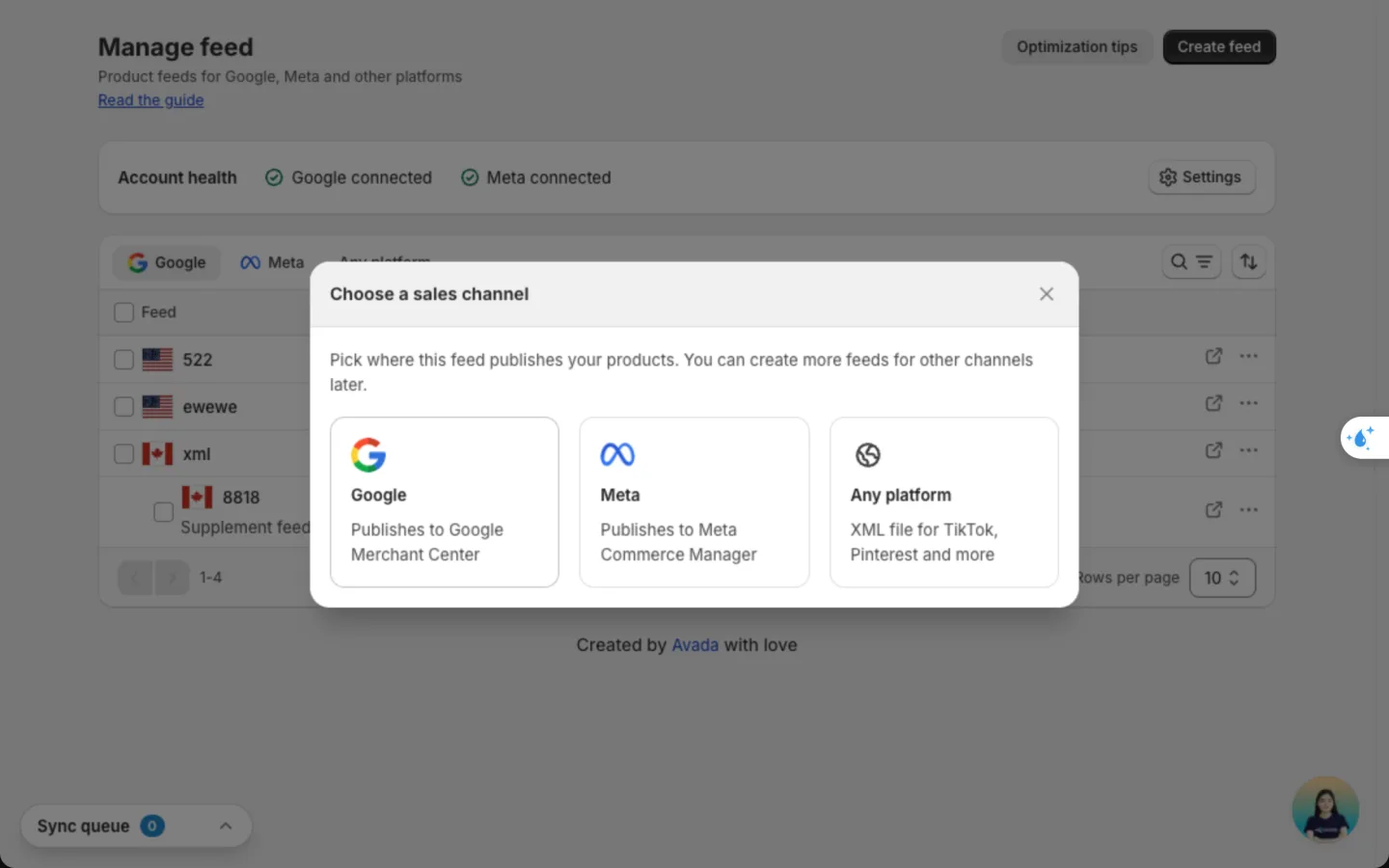
Go to Manage feed, click Create feed, then click Google.
Name the feed and pick when Google collects it
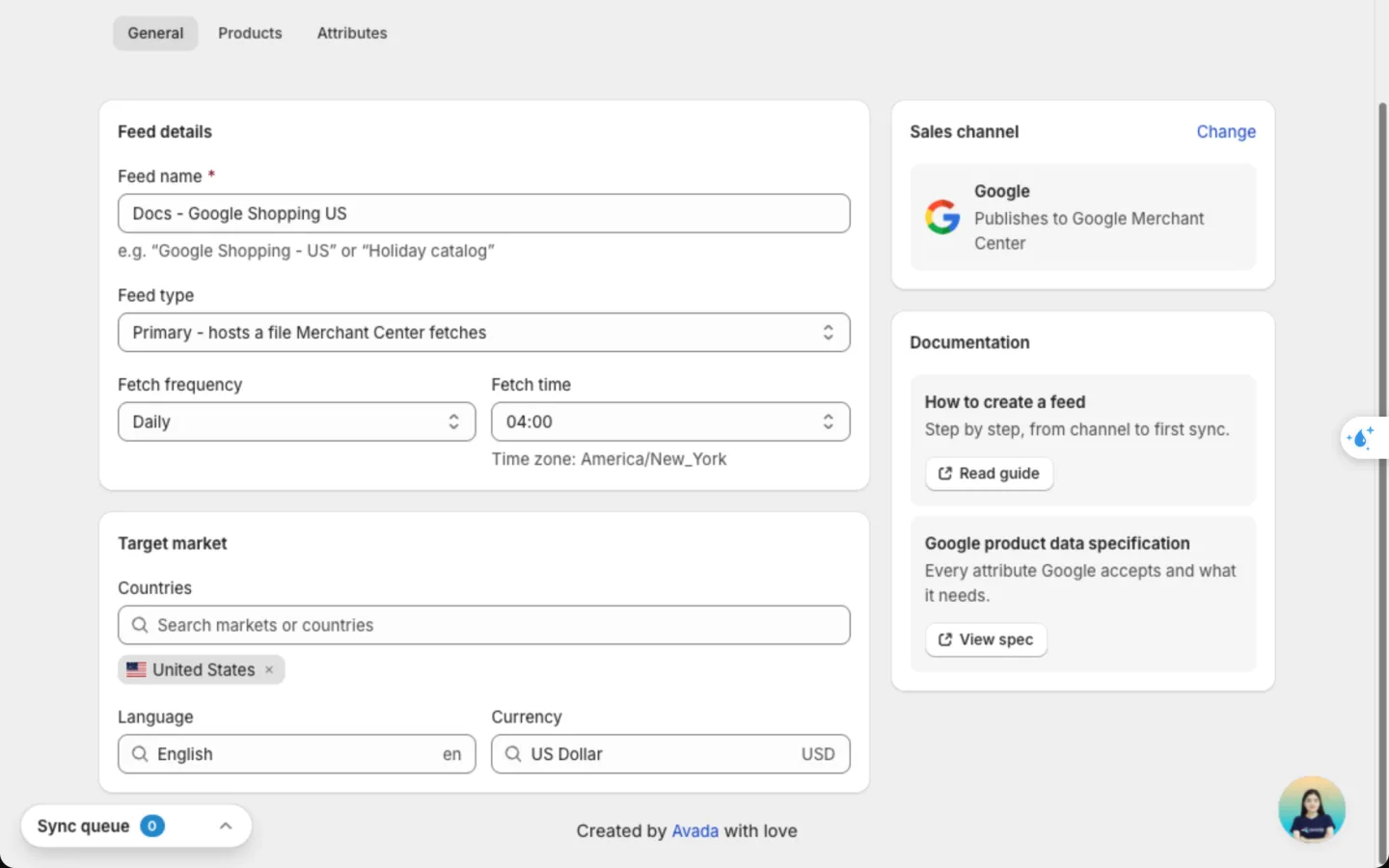
On the General tab, in Feed details:
- Feed name: a label you'll recognise, like "Google Shopping - US". Shoppers never see it.
- Feed type: keep Primary - hosts a file Merchant Center fetches for your main feed.
- Fetch frequency and Fetch time: how often and at what hour Google collects your feed. Daily keeps prices and stock freshest. The time zone shows under the field.
Set the target market
In Target market, type a country or a Shopify market name in Countries and pick it. Then choose a Language and a Currency.
You can add more countries that share the same language and currency. The first one is the main country. See Reach several countries.
Choose the products
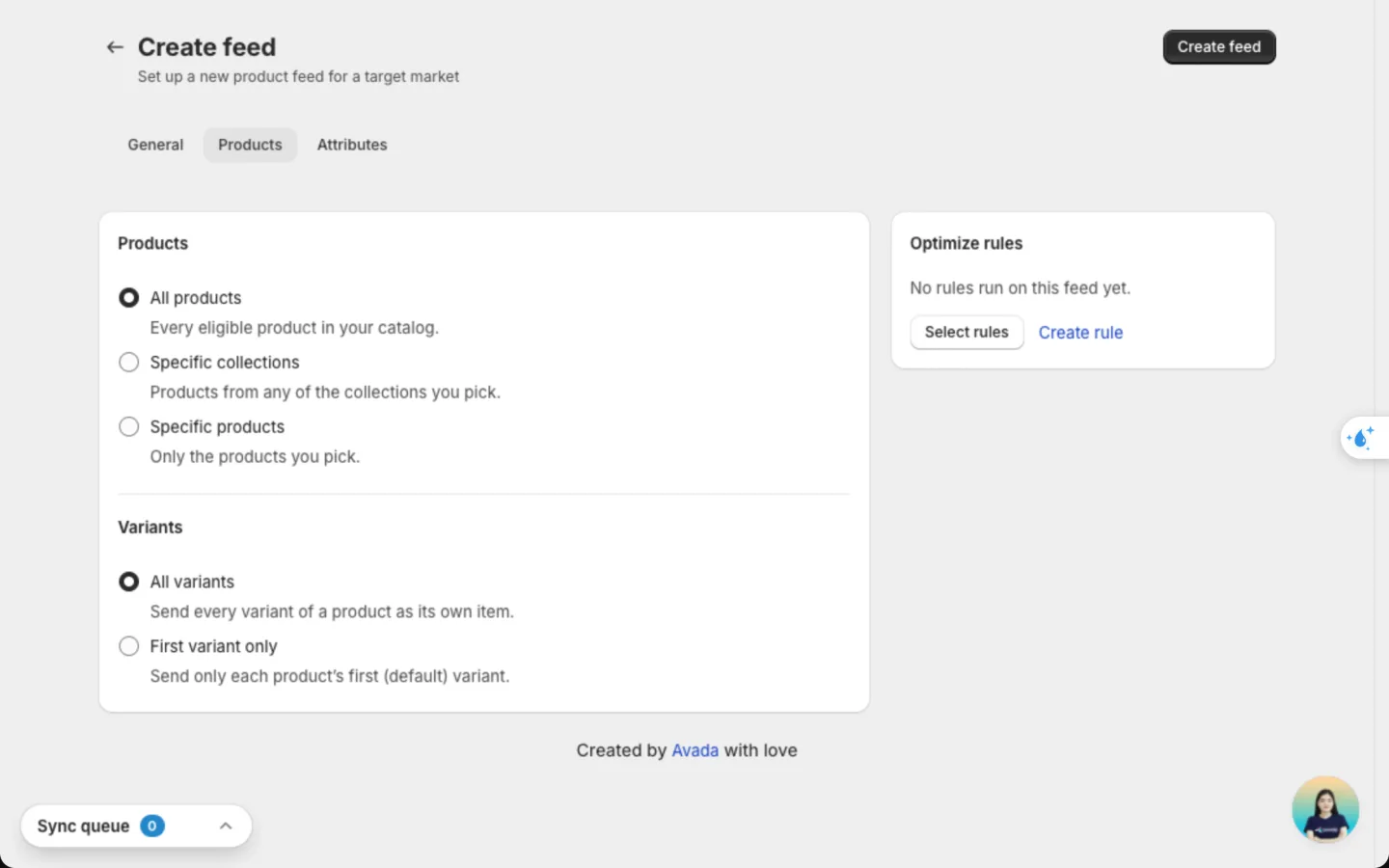
On the Products tab, choose All products, Specific collections or Specific products. Under Variants, choose All variants to list each size or colour on its own, or First variant only.
Check the product details
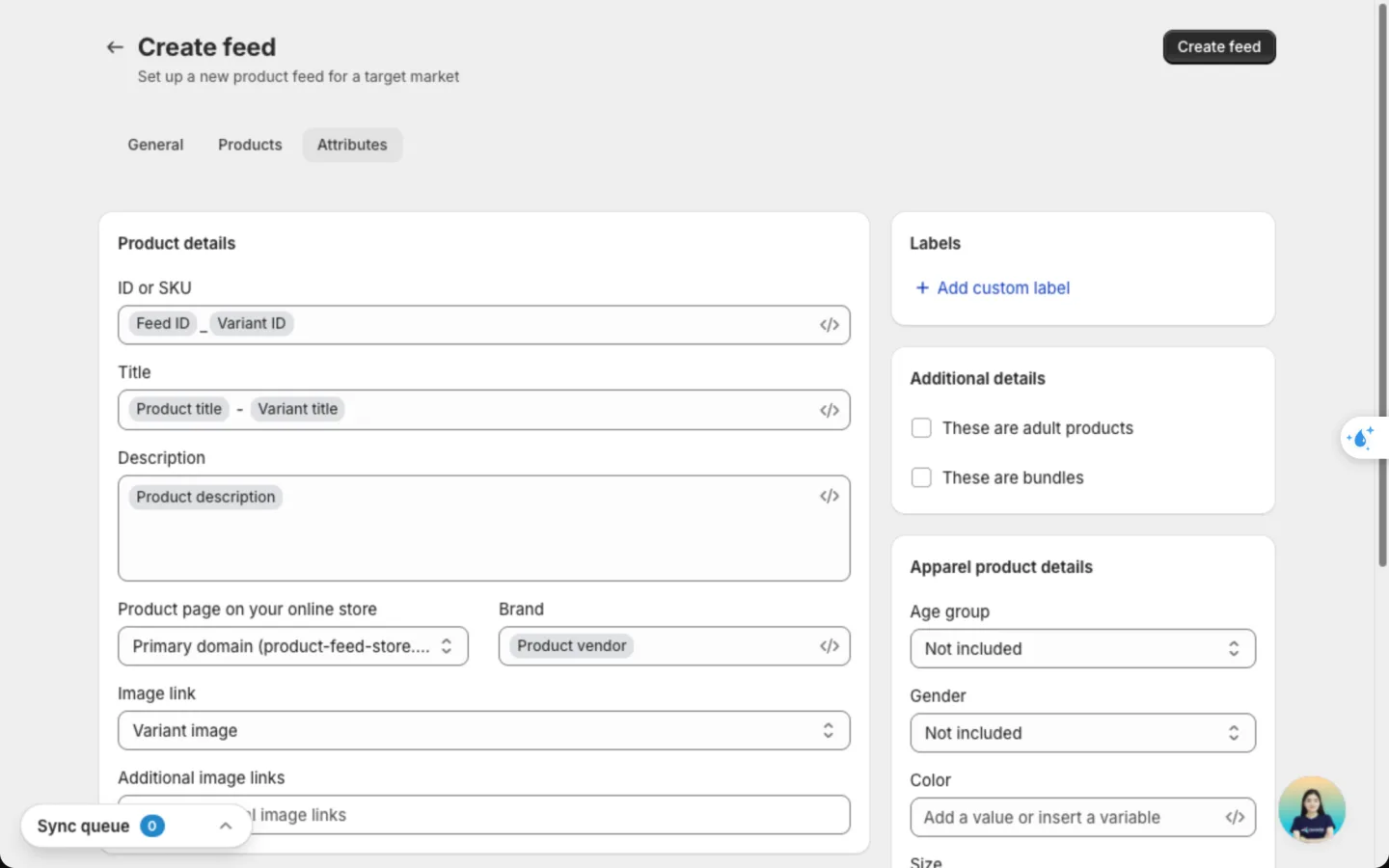
The Attributes tab decides which Shopify detail fills each Google field. The app fills the common ones for you, so most stores only check them. See Fields on each tab.
Save the feed
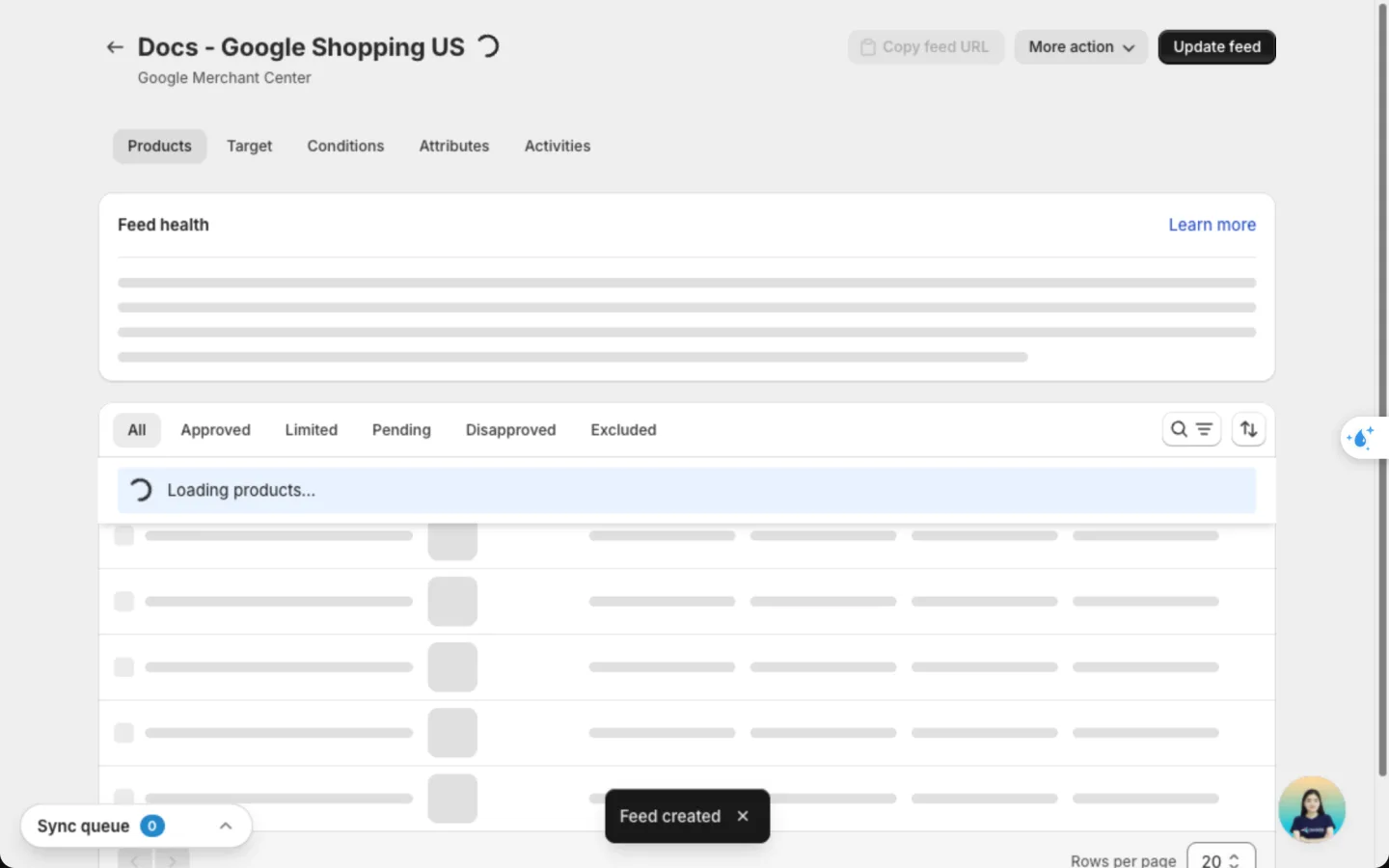
Click Create feed. You'll see Feed created, and the feed page starts building your file. A new feed takes a few minutes.
Check it worked
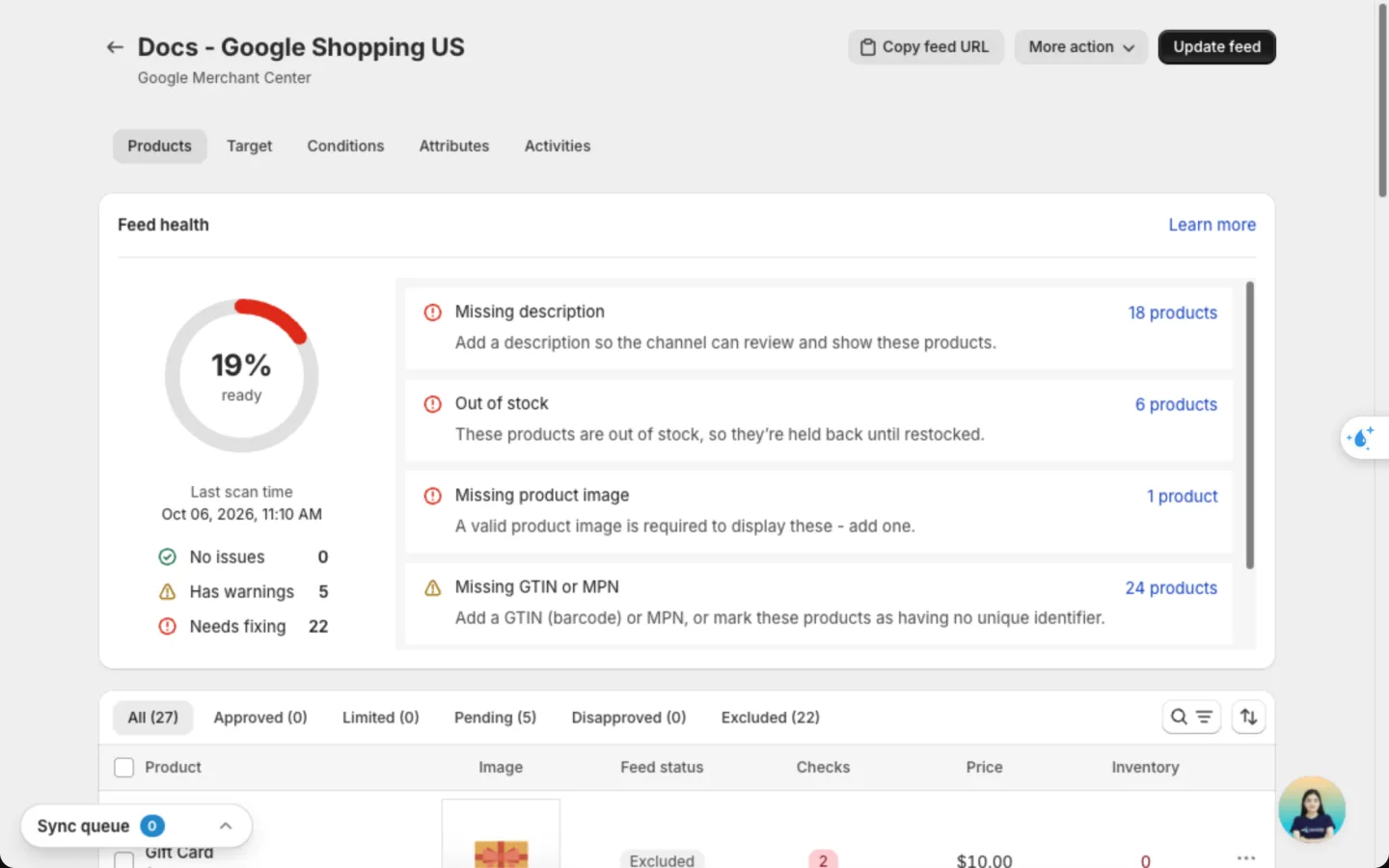
In the app, the feed page shows Feed health and how many products are Pending, Approved or Excluded.
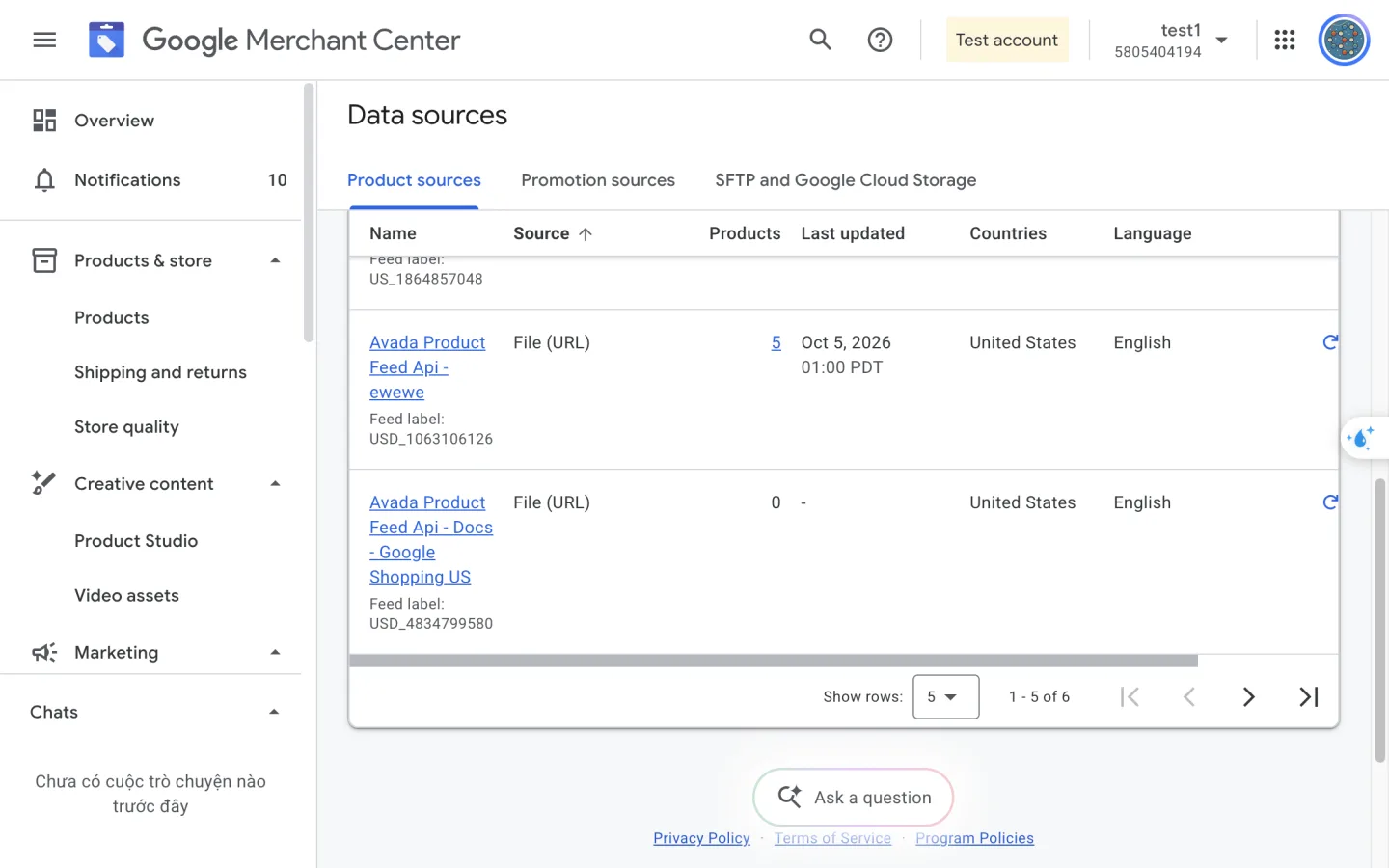
In Merchant Center, go to Products & store → Data sources. Your feed shows under Product sources as Avada Product Feed Api - [your feed name], with its country and language. Products fills in after Google's first fetch.
Google reviews new products within a few days. Follow the results on the feed page and fix rejections in Google product issues. Nothing changes in your Shopify store.
Fields on each tab
General
| Field | What it does | Options |
|---|---|---|
| Feed name | Your own label for the feed | Free text |
| Feed type | Main feed or add-on | Primary - hosts a file Merchant Center fetches, Supplement - add product attributes to a feed |
| Fetch frequency | How often Google collects the feed | Daily, Weekly, Monthly |
| Fetch time | The hour Google collects it | 00:00 to 23:00 in your time zone |
| Countries | Where your products show | One or more countries or Shopify markets |
| Language | Language of titles and descriptions | From your Shopify Markets |
| Currency | Currency of your prices | From your Shopify Markets |
Products
| Field | Options |
|---|---|
| Products to list | All products, Specific collections, Specific products |
| Variants | All variants, First variant only |
| Optimize rules | Select rules or Create rule. See Optimize rules. |
Attributes
Each field shows a tag: Required, Recommended or Optional. In a text field, click Insert variable (</>) or type / to add a value that changes per product. You can insert details from these groups: Product (title, vendor, type, description, tags, category path, SEO title, meta description, URL handle), Variant (title, SKU, barcode, price, compare-at price), Shop (name, domain), and Metafield, Variant metafield or Collection metafield.
| Field | What you can use | How to optimize it |
|---|---|---|
| ID or SKU | Feed ID + variant ID by default. Can also use SKU, barcode, product ID, URL handle or a metafield. | Keep the default. It's unique and never clashes. You can't change it after the feed is created. |
| Title | Product title + variant name by default, or any mix of text and variables | Put what shoppers search first: brand + product type + key detail, like {Product vendor} {Product title} - {Variant title}. Don't use all caps or promo text like "Free shipping". |
| Description | Product description by default, or text and variables | Describe the product, not the store. Mention material, use and fit. Products with no description are held back. |
| Product page on your online store | Primary domain by default, or another domain of your store | Pick the domain shoppers buy on. On Google, it must match the website you verified in Merchant Center. |
| Brand | Product vendor by default, or text and variables | Use the real brand name, not your store name, unless you make the products yourself. |
| Image link | Variant image (default), Product image 1 to 10, or Design template | Use the photo that shows the exact variant. Turn to a design template for a branded image. |
| Additional image links | Up to 5 of Product image 1 to 10 | Add angles, close-ups and lifestyle shots. Shoppers see them when they open the product. |
| Google product category | Shopify category (mapped) by default, or Custom category | Pick the most specific category you can. "Shoes > Sneakers" beats "Apparel". |
| Product type | Your Shopify product type by default, or text and variables | Use your own category path, like "Women > Shoes > Sneakers". It helps you split ad campaigns. |
| Condition | New, Refurbished, Used, or a metafield | Leave New unless you sell second-hand or refurbished items. |
| GTIN, UPC, EAN, JAN or ISBN | Variant barcode by default, or a metafield | Fill it for every branded product. It's the strongest signal for approval and matching. |
| MPN | Variant SKU by default, or variant barcode, or a metafield | Use the maker's part number when there's no barcode. |
| These are one-of-a-kind or vintage products with no identifier | Tick box | Tick it for handmade, custom-made or vintage items. GTIN and MPN turn off. |
| Custom label | Up to 5 labels, text and variables | Group products for bidding: "bestseller", "on sale", "high margin", "season". Shoppers never see them. |
| These are adult products | Tick box | Tick only if the products are adult content under Google's policy. |
| These are bundles | Tick box | Tick when one price covers several different products grouped by you. |
| Age group | Newborn, Infant, Toddler, Kids, Adult, or Not included | Required for apparel in the US, UK, Germany, France, Japan and Brazil. Set Adult for most stores. |
| Gender | Male, Female, Unisex, or Not included | Required for apparel in the same countries. |
| Color | A fixed value or a metafield | Use a plain colour name shoppers type, like "Navy", not a code. |
| Size | A fixed value or a metafield | Required for clothing and shoes. Match your size chart, like "M" or "42". |
| Size system | AU, BR, CN, DE, EU, FR, IT, JP, MEX, UK, US | Set the country your sizes follow, so "8" isn't read as the wrong size. |
| Size type | Up to 2 of Regular, Petite, Plus, Big, Tall, Maternity | Set it when you sell special fits, so they show for the right searches. |
| Material | A fixed value or a metafield | Name the main fabric, like "Cotton". It helps searches like "linen shirt". |
| Pattern | A fixed value or a metafield | Name it when it matters, like "Striped" or "Floral". |
Price, sale price and stock always come from Shopify, so they're not fields in the form. They stay correct on their own.
Optimize your feed for Google
Google approves a product first, then ranks it by how well its details match what shoppers search. Work in this order. Each step unlocks the next.
- Clear what blocks approval. Open the feed page. Feed health lists the blockers, like Missing description or Out of stock. Products with a blocker are held back.
- Add identifiers. Fill GTIN from your Shopify barcode, or tick the no-identifier box for handmade items. Missing GTIN or MPN is the most common warning, and it limits how often Google shows a product.
- Fill apparel details if you sell clothing. In the US, UK, Germany, France, Japan and Brazil, Google rejects clothing with no Age group, Gender, Color or Size. Store them in metafields once, then insert the metafield.
- Sharpen titles and categories. A specific Google product category and a title that starts with brand and product type put you in more searches.
- Add custom labels for ads. Once products show, group them with labels so you can bid more on bestsellers and less on clearance. Optimize rules can fill labels for you.
Keep the main Image link clean: the product on a plain background, with no watermark. Google may limit or reject main images covered by promo text. If you use a design template, keep the product clearly visible.
Reach several countries with one feed
Add more countries in Countries when you create the feed. Search by country name or Shopify market name. Picking a market adds all its countries. You can add up to 50 more after the main country.
A feed has one language and one currency, so pick countries that share them. For a different language or currency, create another feed.
Good to know
- You can't change the feed type, main country or fetch schedule after saving. Use Duplicate in the feed's row menu to copy a setup.
- Changes reach Google at the next fetch. Click Update feed on the feed page to rebuild the file sooner.
- If the compare-at price is higher than the price, Google shows the product on sale.
- Prices follow your Shopify Markets price for each country.
- Gender only offers values Google accepts, so a typo can't get a product rejected.
- To add details like material without touching your main feed, add a Supplement feed. See Create a feed.
FAQs
How long until my products show on Google?
Google collects your feed at the next fetch time, then reviews new products. Google says reviews usually take up to 3 business days. Products show as Pending until then.
Merchant Center shows 0 products for my feed. Is something wrong?
No. Google hasn't fetched the file yet. Wait until after the fetch time you picked. If it still shows 0 a day later, check that your website is verified in Merchant Center.
Why are so many products excluded?
The app holds back products that Google would reject anyway: out of stock, no description or no image. Open the feed page, click Excluded, and fix the reasons shown under Feed health.
Do I need a GTIN for every product?
For branded products, yes, in most cases. For handmade, custom or vintage products, tick These are one-of-a-kind or vintage products with no identifier and Google won't ask for one.
Can I use one feed for the US and Canada?
Only if they share a language and currency. The US uses USD and Canada uses CAD, so create one feed per currency.
Will the feed change my Shopify products?
No. The app only reads your products. Edits in the feed never change Shopify.
Still have questions?
Chat with us from the app, any time.