Create a feed
Instead of adding products to Google or Meta one by one, create a feed once and let each platform pick up your whole catalog on a schedule, for the market you sell in.
What is a feed?
A feed is your product list for one sales channel and one market. The app keeps your feed as a file online, and the channel collects it on the schedule you pick. A market is a language, a currency and the countries you sell in, taken from your Shopify Markets.
You'll find it in the app under Manage feed → Create feed. You pick a channel first, then fill in three tabs: General, Products and Attributes. A localize feed shows only General.
| Channel | Where your products show | Account needed |
|---|---|---|
| Google Shopping, through Merchant Center | ✅ | |
| Meta | Facebook and Instagram shops and ads, through Commerce Manager | ✅ |
| Any platform | TikTok, Pinterest, Microsoft and any platform that reads a feed link | — |
Step-by-step guides for each channel, with every field and tips to get more products approved: Google Shopping feed, Facebook & Instagram feed, Any platform feed.
Before you start
- Connect your Google or Meta account in Settings. The app then adds the feed to Merchant Center or your Meta catalog for you. Not connected yet? You can still create the feed. Copy its feed URL afterwards and add it in Merchant Center or Commerce Manager yourself.
- Check your feed count. At 10 feeds, the Create feed button is greyed out. Delete a feed or contact us to raise the limit.
Pick the right feed type
Most stores only need a Primary feed. The other two types build on a feed you already have.
| Primary | Localize | Supplement | |
|---|---|---|---|
| In short | Your main feed. Start here. | Local price or translated text for one market | Extra details for products already listed |
| Channels | Google, Meta, Any platform | Meta | Google, Meta |
| Puts your products on the channel | ✅ | — | — |
| Changes price or stock | ✅ | ✅ (one country) | — |
| Changes title and description | ✅ | ✅ (one language) | — |
| Fills in extra details, like material | ✅ | — | ✅ |
The key difference: a primary feed puts your products on the channel. A localize or supplement feed only adjusts products that are already there.
You can't change the feed type, sales channel, main country or fetch schedule after the feed is created. To reuse a setup for another market, use Duplicate in the feed's row menu.
How to create a feed
Choose a sales channel
Go to Manage feed and click Create feed. In Choose a sales channel, click Google, Meta or Any platform.
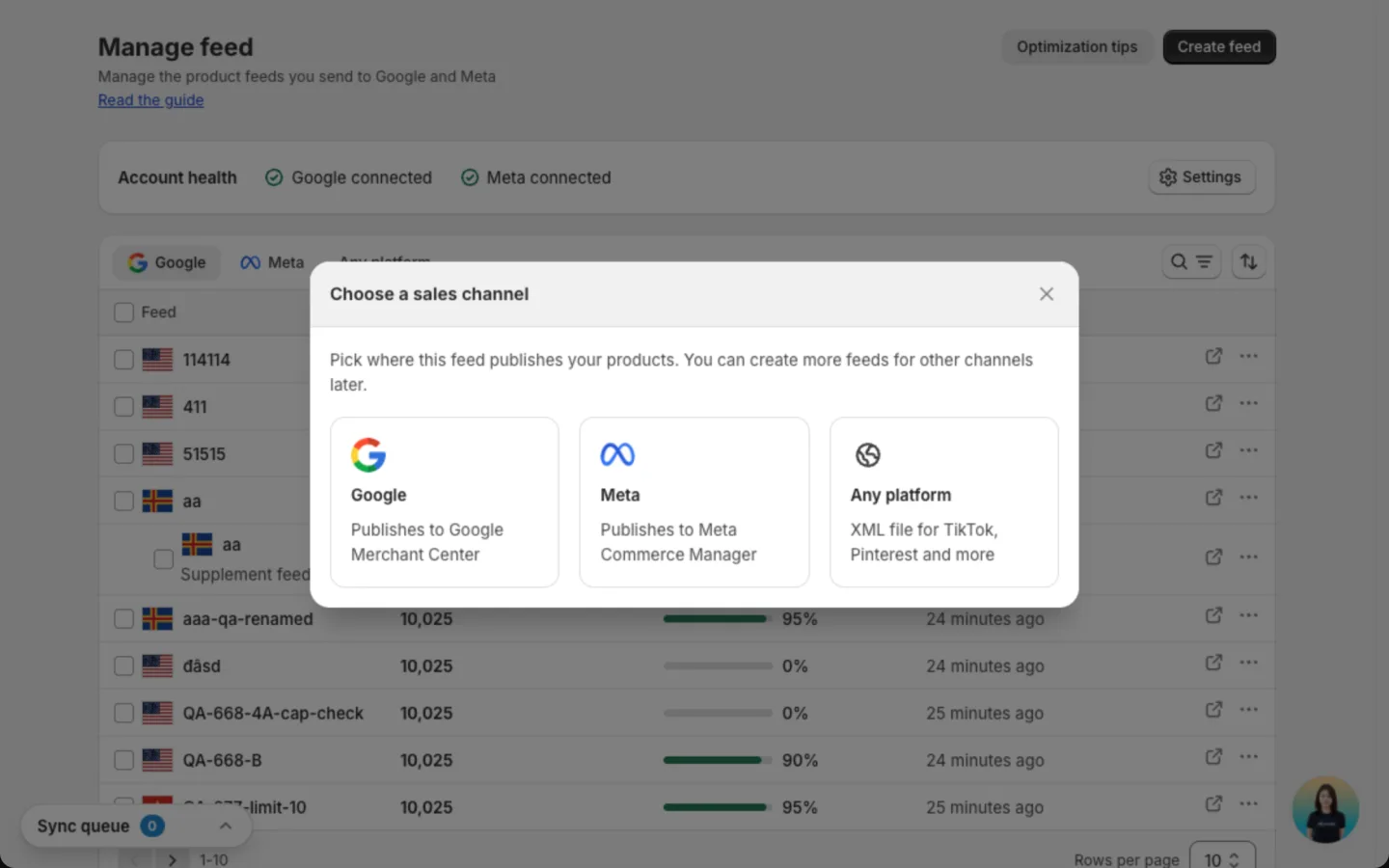
For Any platform, see Create a feed for any platform.
Name the feed and pick its type
On the General tab, the Feed details card comes first. Enter a Feed name you'll recognise, like "Google Shopping - US". Customers never see it. Then pick a Feed type. For your main feed, keep Primary - hosts a file Merchant Center fetches (Google) or Primary - hosts a file your catalog fetches (Meta).
Picked the wrong channel? Click Change on the Sales channel card at the right before you save.
Pick when Google or Meta collects the feed
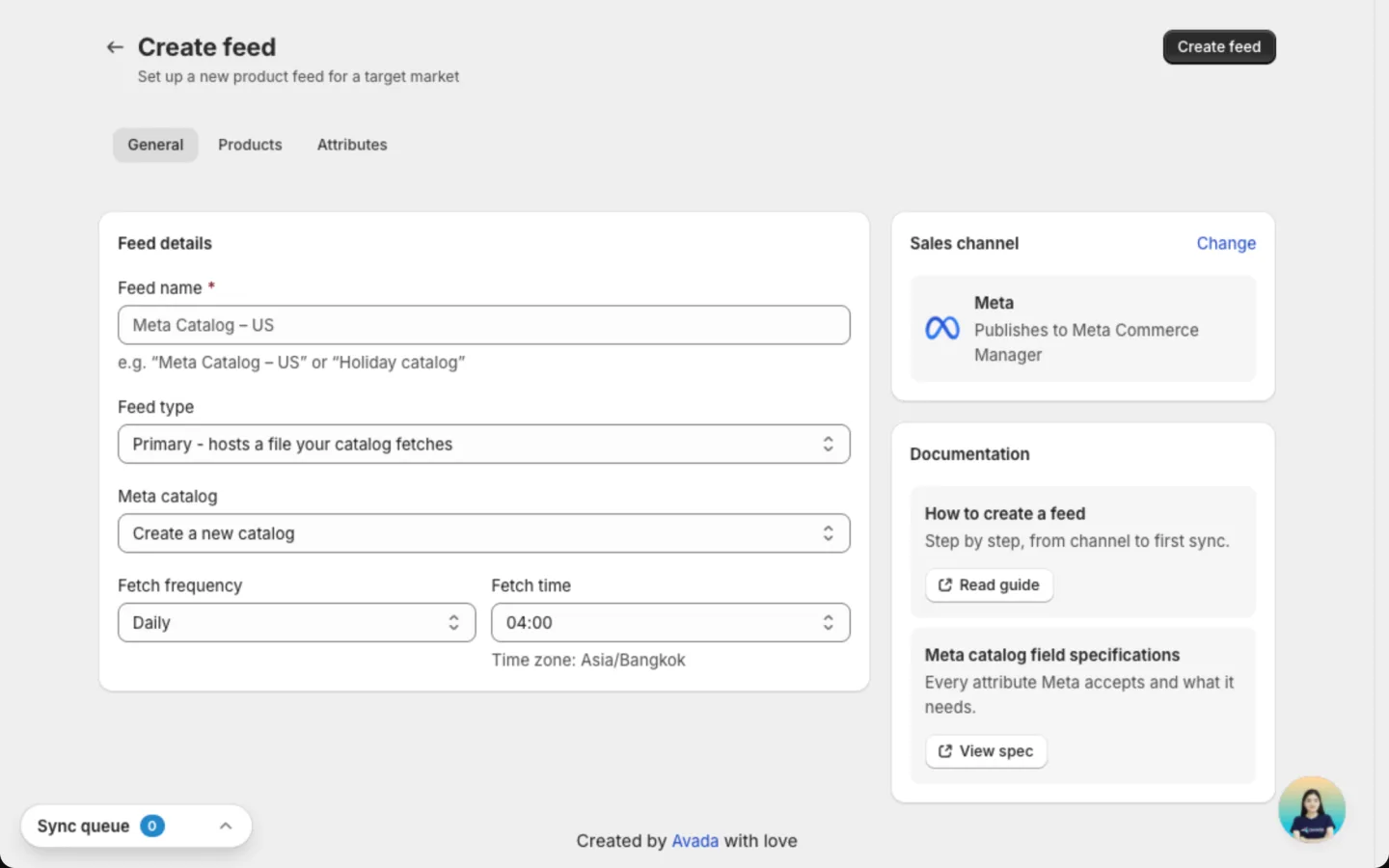
Choose a Fetch frequency and a Fetch time. Google offers Daily, Weekly and Monthly. Meta offers Daily, Hourly and Weekly. The time uses the time zone shown under the field.
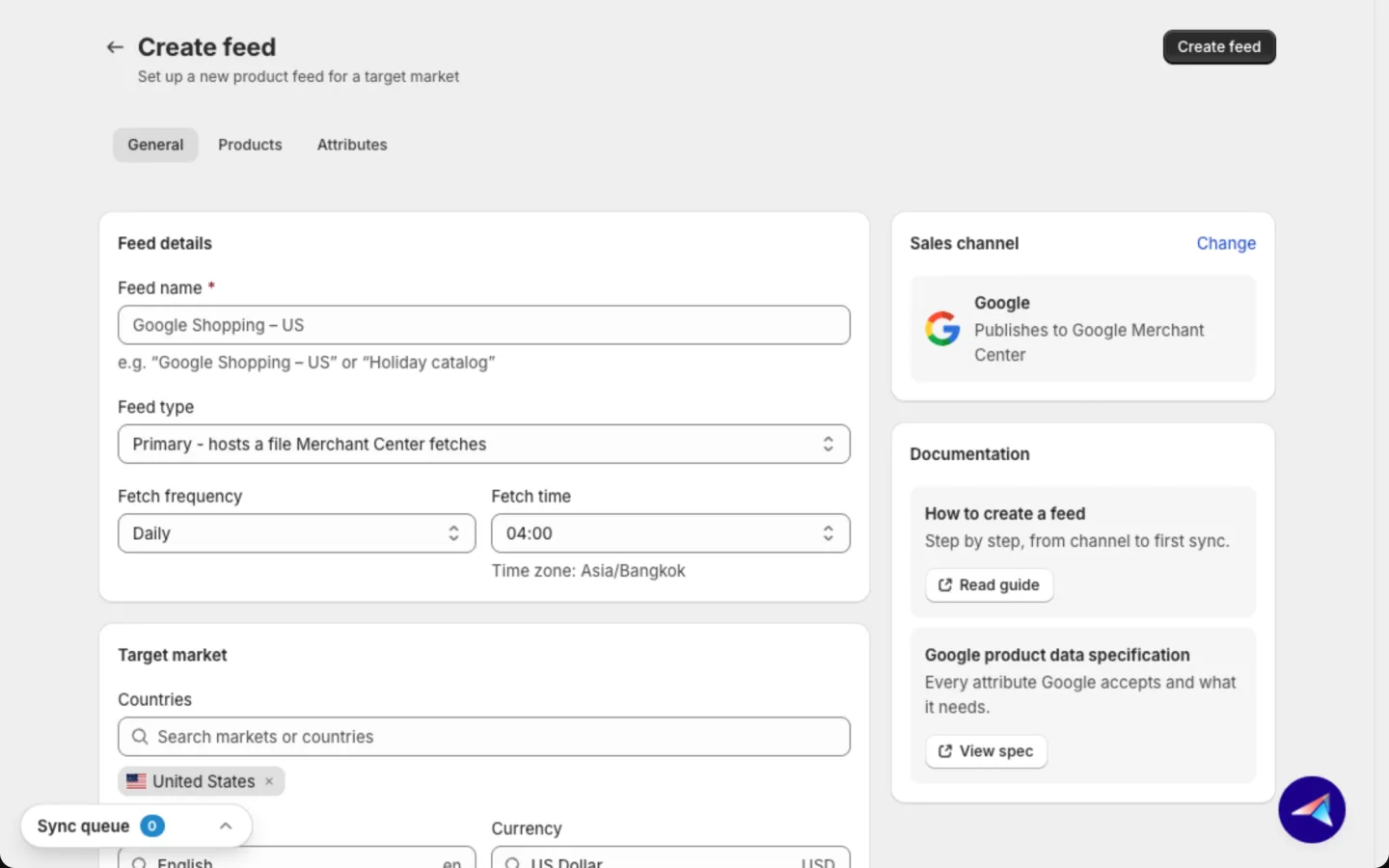
On Meta, also pick a Meta catalog: one of your existing catalogs, or Create a new catalog.
Set the target market
On a Google feed, the Target market card sets where your products show:
- Countries: type a country or a Shopify market name and pick it. Add as many countries as you sell in. Each one shows as a label with its flag. Click the x on a label to remove it.
- Language and Currency: one of each per feed. The lists come from your Shopify Markets, so your ads show the price shoppers really pay.
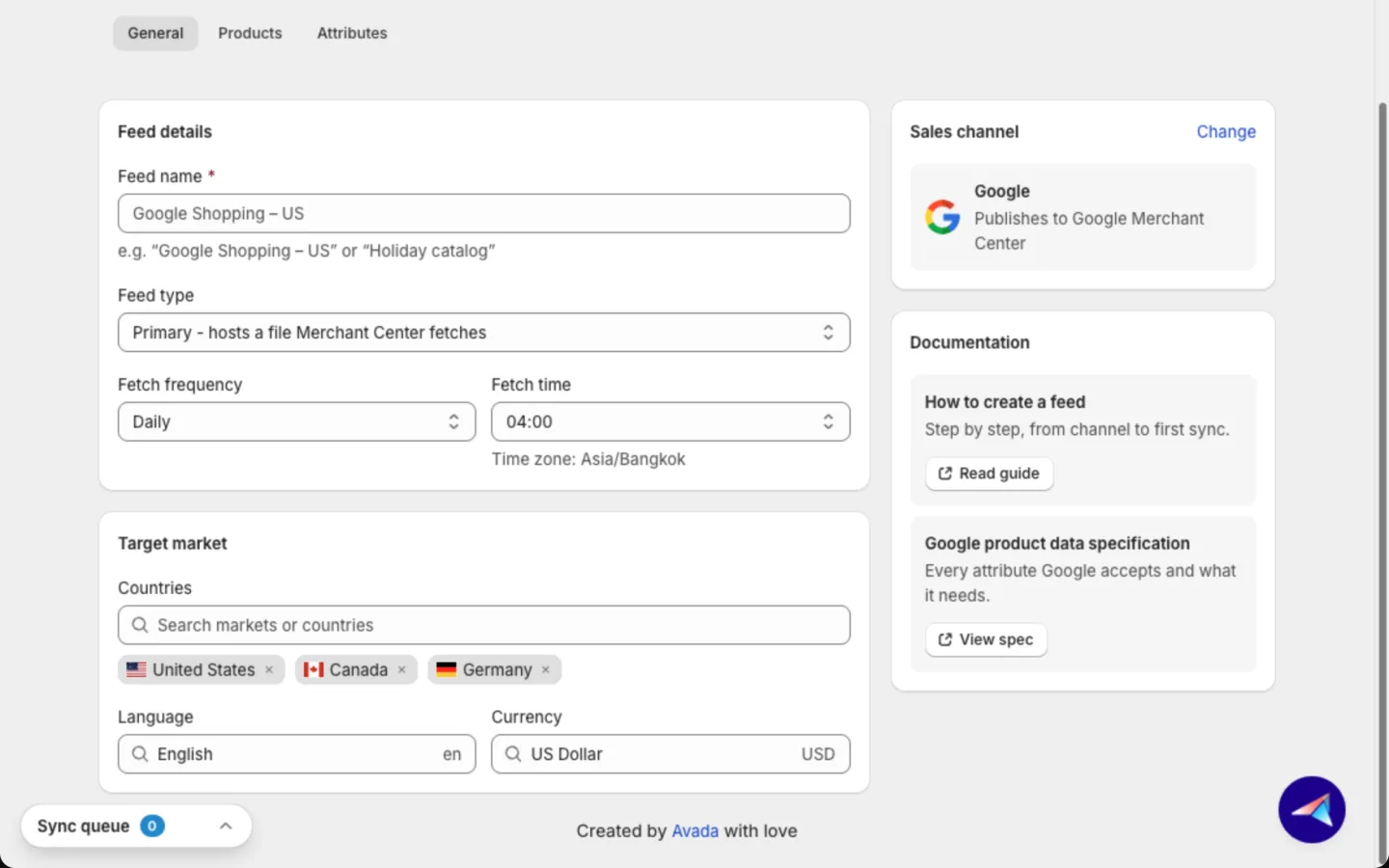
The first country is the feed's main country. Google shows the same products in the others too. See Reach several countries with one Google feed.
A main Meta feed has no Target market card. To show a local price or translated text for one market on Meta, add a localize feed on top.
Choose the products
On the Products tab, pick what to list:
- All products: every product that can be listed.
- Specific collections: click Select collections and pick one or more.
- Specific products: click Select products and pick products or single variants.
Under Variants, choose All variants to list each size or colour on its own, or First variant only for one listing per product. This choice doesn't apply to Specific products.
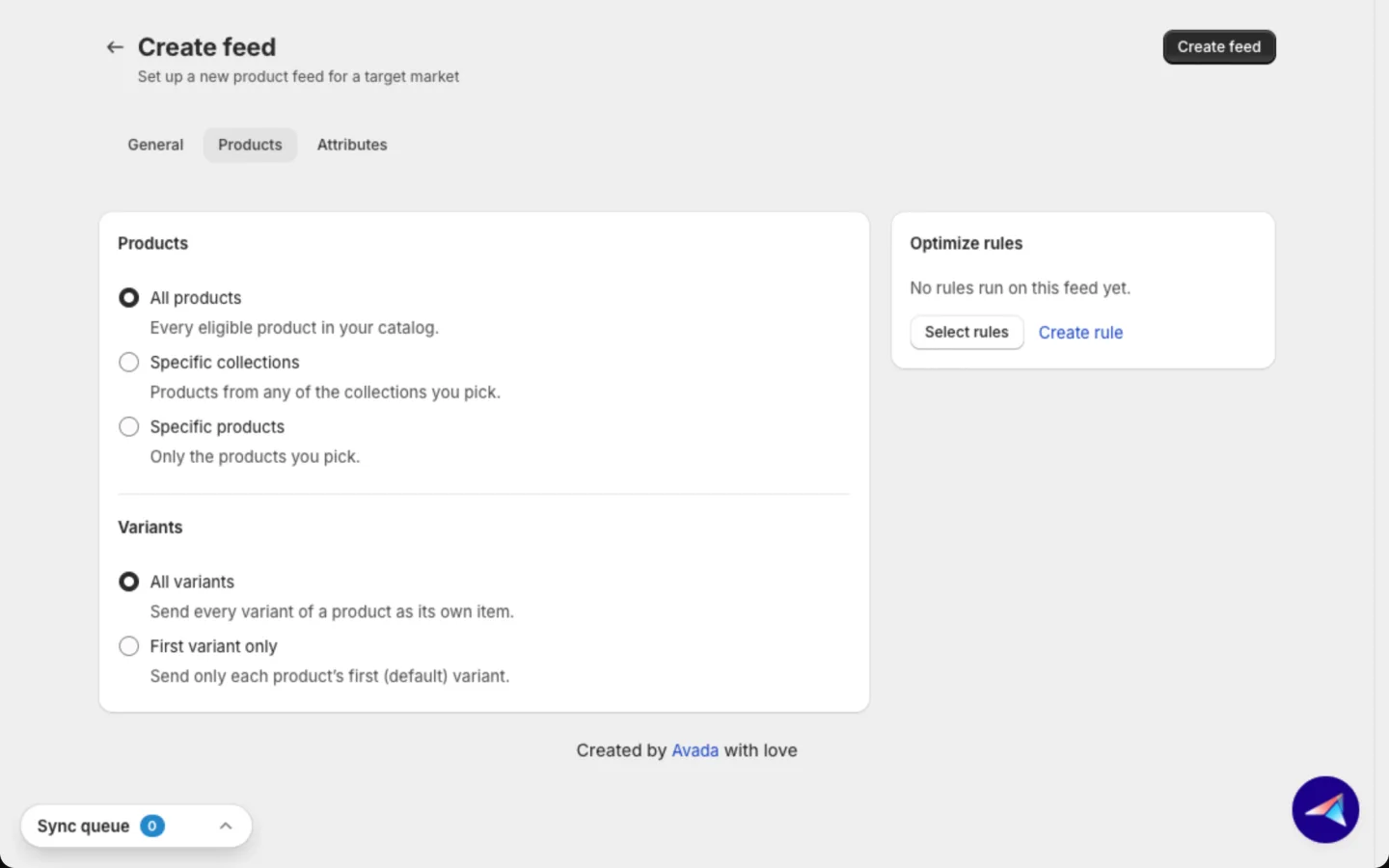
The Optimize rules card at the right lets you filter products and fill in details by rule. Click Select rules or Create rule. See Optimize rules.
Check the product details
The Attributes tab decides which Shopify detail fills each field on the channel. The app fills the common ones for you, so most stores only check and move on. See Fill in product details below.
Save the feed
Click Create feed at the top of the page. The feed's page opens and the app starts building your feed file.
Once the file is ready, Google or Meta collects it at the fetch time you picked. Follow approval results on the feed page. Nothing changes in your Shopify store.
Need help while you fill in the form? The Documentation card on the General tab has two links. Read guide opens this page. View spec opens the list of product details Google or Meta accepts.
Reach several countries with one Google feed
Instead of creating one feed per country, list your products in every country that shares a language and currency with a single feed.
- Add the countries in Countries when you create the feed. Search by country name or by Shopify market name. Picking a market adds all its countries.
- The first country is the main one. You can add up to 50 more.
- A feed has one language and one currency. Pick countries that use the same ones as your main country. For a different language or currency, create another feed.
- After you create the feed, open it and go to the Target tab. The Market card lists every country.
Only Google feeds cover several countries. Meta and Any platform feeds don't have this option yet.
Create a feed for any platform
Sell on TikTok, Pinterest or Microsoft too? An Any platform feed gives you one link to your products that those platforms can read. See Create a feed for any platform for the full steps.
Fill in product details
Complete product details help each channel approve more products and show them to the right shoppers. The main column holds Product details and Category & identifiers. The column at the right holds Labels, Additional details and Apparel product details.
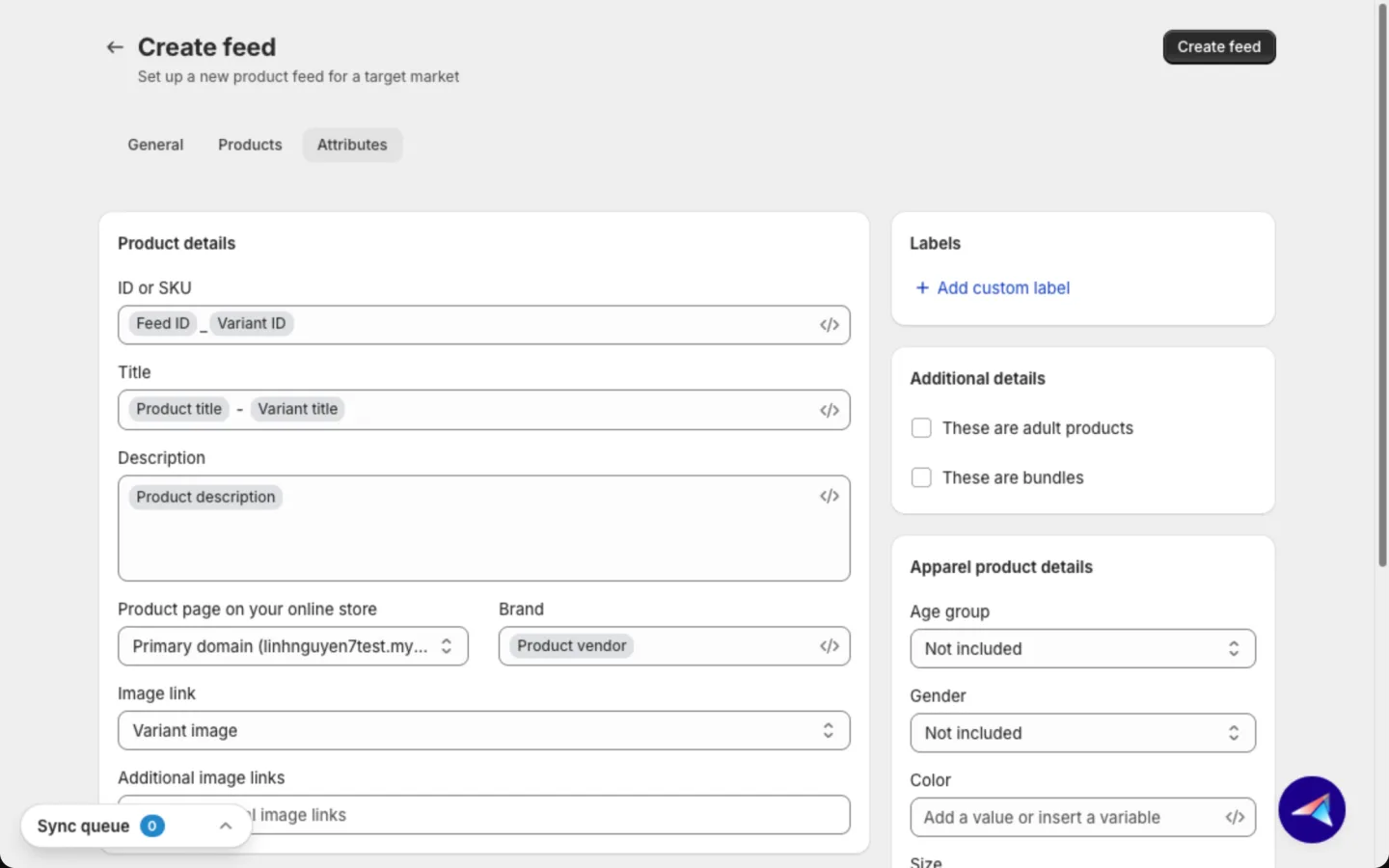
For each field, pick a Shopify field, a preset or your own value, or Not included. Required fields can't be turned off.
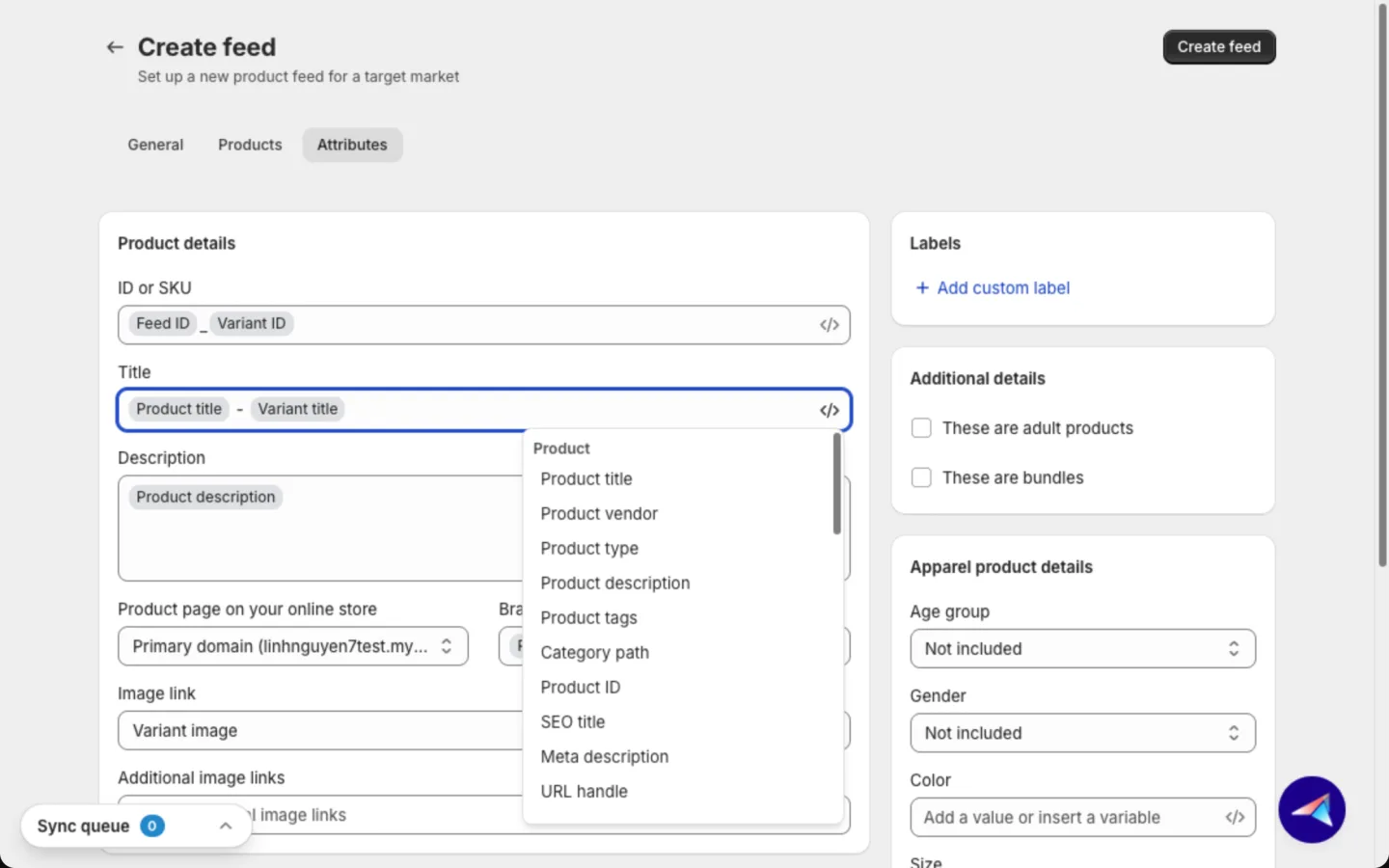
- Insert variable: click the
</>icon in a text field, or type/. Add each product's own title, SKU or a Shopify metafield, so one setting works for every product. - Google product category: the app picks the right Google category for you. To choose your own, pick Custom category, click Select a category, and choose it in Select a Google product category.
- Custom labels: under Labels, click Add custom label (up to 5). Use them to group products, like "on sale", for ad bidding.
- Design template: under Image link, choose Design template, then a template and an Image format (1:1 or 4:5). Your ads show a branded image instead of the plain photo. See Image templates.
- Apparel product details: for fashion products, fill Age group, Gender, Color, Size, Material and Pattern. Not selling fashion? Leave them as they are.
What each channel shows:
| Group | Meta | Any platform | |
|---|---|---|---|
| Product details | ✅ | ✅ | ✅ |
| Category & identifiers | ✅ | ✅ | ✅ |
| Labels | ✅ | ✅ | ✅ |
| Additional details | ✅ | — | ✅ |
| Apparel product details | ✅ | ✅ | ✅ |
| Size system and Size type | ✅ | — | — |
Price, Availability and Sale price always come from Shopify, so they are no longer fields in the form. They stay correct on their own.
Set up a localize or supplement feed
Create a primary feed first. Then add these on top of it.
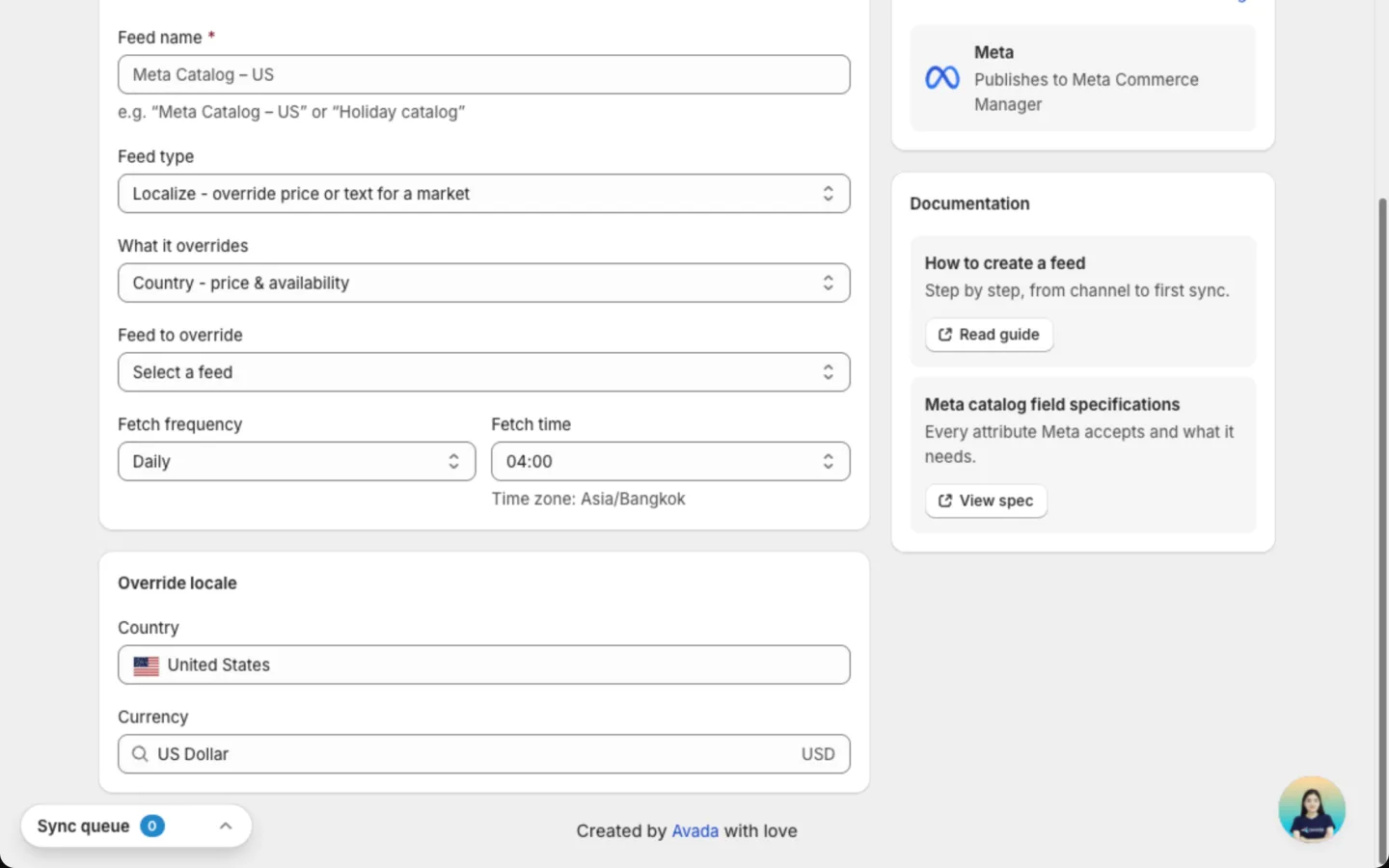
Localize (Meta). Show a local price or stock level in one country, or translated text in one language. It copies its products and settings from your main feed.
Choose the feed type
In Feed type, choose Localize - override price or text for a market.
Choose country or language
In What it overrides, choose Country - price & availability or Language - title & description.
Pick the main feed and schedule
Pick the Feed to override, then a Fetch frequency and Fetch time. Under Override locale, choose the country or language it applies to. You can also open this form from Add override feed in a Meta feed's row menu on Manage feed.
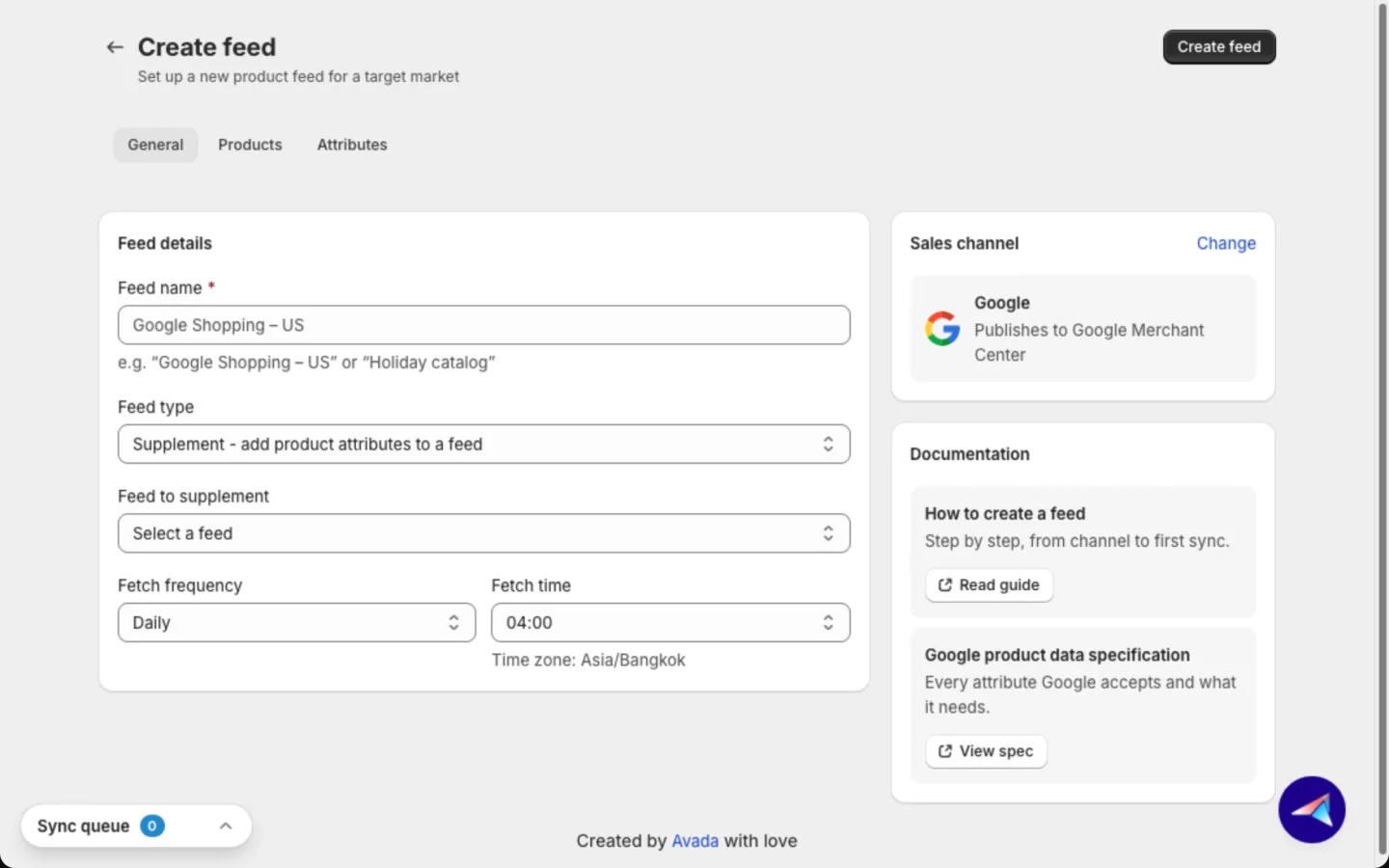
Supplement (Google, Meta). Add details like GTIN or material without touching your main feed. It never changes price, stock or link.
Choose the feed type
In Feed type, choose Supplement - add product attributes to a feed (Google) or Supplement - add product attributes to a catalog (Meta).
Pick the feed and schedule
Pick the main feed in Feed to supplement. You can only add to a feed in this app. Then choose a Fetch frequency and Fetch time. On Google, you can also start from Add override feed in the feed's row menu.
Fill at least one detail
The Attributes tab shows only the details a supplement can add. Set a value for at least one, then click Create feed.
On Google, a supplement only fills fields your main feed leaves empty. With a connected Meta account, the app adds localize and supplement feeds to your catalog for you. On Meta, each feed can have one supplement.
Good to know
- Changes reach Google or Meta at the next fetch, not instantly.
- Each product gets its ID from ID or SKU, the first field in Product details. You can't change it after the feed is created.
- Out-of-stock products are always held back from the channel.
- If a product's compare-at price is higher than its price, it shows as on sale.
- Prices follow your Shopify Markets price for the country. With no market price, the app uses your store currency.
- Gender only offers the values each channel accepts, so a typo can't get a product rejected.
- New Google feeds no longer ask for Marketing methods or Shipping & returns. Your products show wherever Google supports them, which is Google's default. Older feeds keep the choices you saved.
- A localize feed shows Override locale instead of Target market. Most supplements use their main feed's market.
- Duplicate in a feed's row menu copies all settings into a new feed. The copy keeps the same market.
FAQs
Do I need a separate feed for each country?
Not on Google. One Google feed can cover several countries that share a language and currency. Create another feed when the language or currency changes. On Meta, use a localize feed for each extra country or language.
Will creating a feed change my Shopify products?
No. The app only reads your products. Edits you make in the feed never change Shopify.
How fast do my changes reach Google or Meta?
At the next fetch time you picked. To rebuild the file sooner, open the feed and click Update feed. Google or Meta still picks it up at its next fetch.
Can I change the market later?
No. The feed type, sales channel, main country and fetch schedule are fixed once the feed exists. Duplicate the feed and change the copy instead.
Can I use an Any platform feed for Google or Meta?
Use a Google or Meta feed instead. Those connect to your account, so the app adds the feed for you and shows approval results.
Still have questions?
Chat with us from the app, any time.