Create a Facebook & Instagram feed
Instead of uploading products to Meta by hand, create one Meta feed. The app adds it to your catalog, and Facebook and Instagram pick up your latest prices and stock on their own.
What is a Meta feed?
A Meta feed is your product list for Facebook and Instagram. The app keeps it as a file online and adds it to a Meta catalog, the product list in Meta's Commerce Manager. Your catalog then powers your Facebook and Instagram shops, product tags, and ads that show shoppers the exact products they viewed.
The path to sales is: eligible products → they show in shops and ads → shoppers click → orders. The app's job is to get as many products eligible as possible, and keep them correct.
You need a Meta business account with Commerce Manager access. To sell in a Facebook or Instagram shop, your business must also meet Meta's commerce rules. You set these up on Meta, not in the app.
Before you start
- Connect your Meta account in Settings. Not connected yet? You can still create the feed, copy its link with Copy feed URL, and add it in Commerce Manager yourself.
- Decide which catalog to use. If you already run ads with a catalog, add the feed to that one so your ads keep working.
- Check your feed count. At 10 feeds, the Create feed button is greyed out.
Set it up
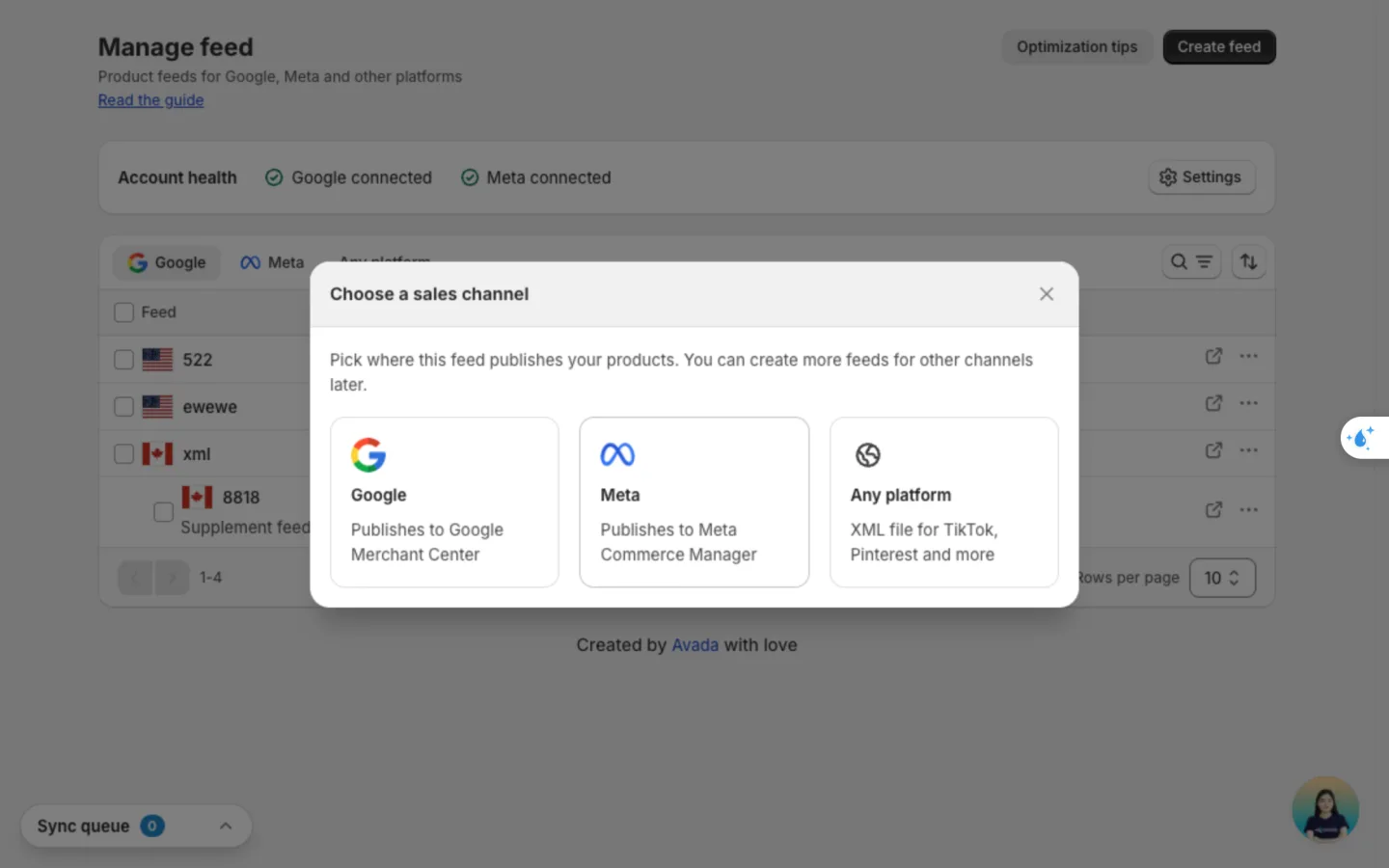
Choose Meta
Go to Manage feed, click Create feed, then click Meta.
Name the feed and pick the catalog
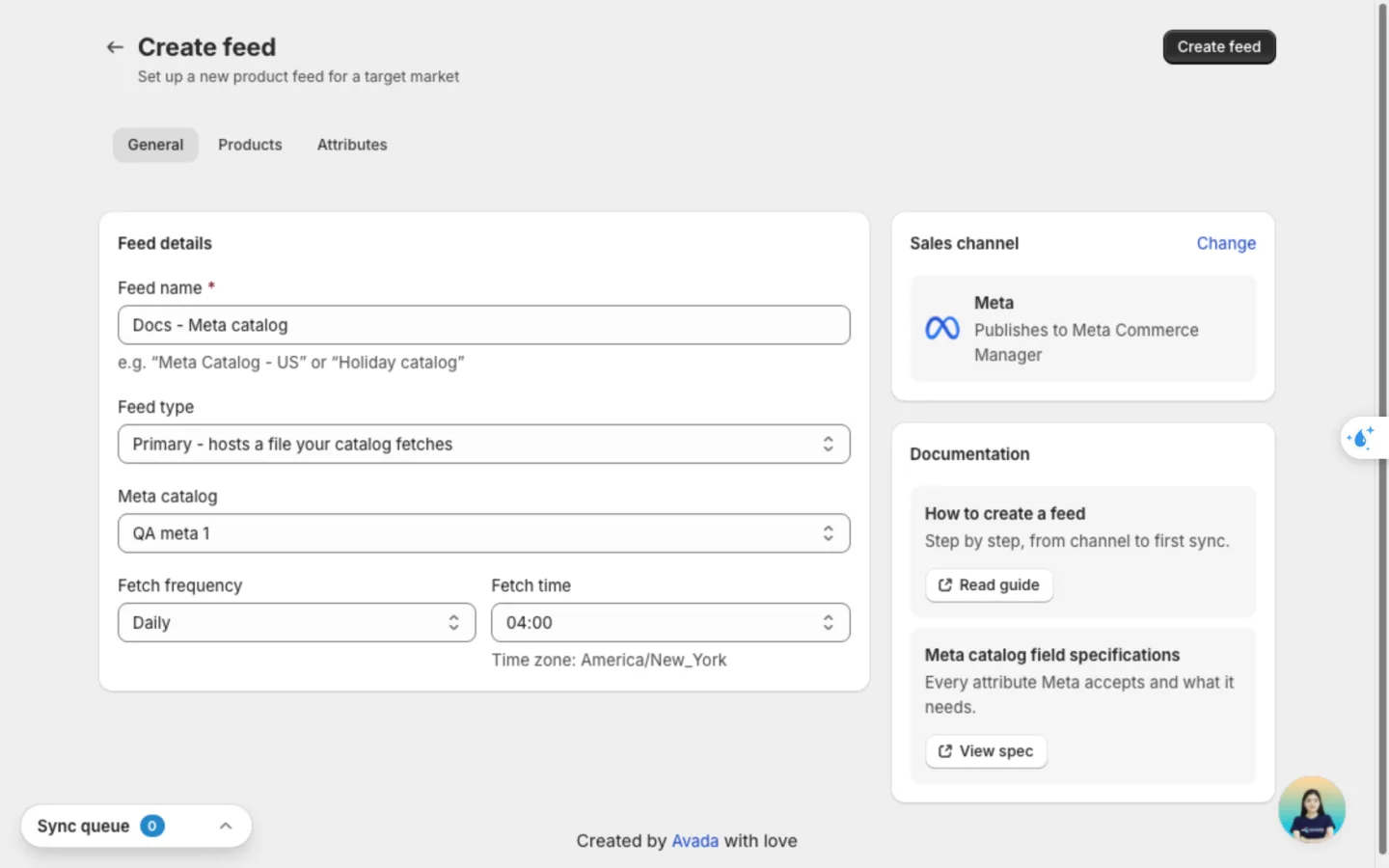
On the General tab, in Feed details:
- Feed name: a label you'll recognise, like "Meta Catalog - US". Shoppers never see it.
- Feed type: keep Primary - hosts a file your catalog fetches for your main feed.
- Meta catalog: pick one of your catalogs, or Create a new catalog. The list takes a moment to load.
- Fetch frequency and Fetch time: how often and at what hour Meta collects your feed. Choose Hourly if your prices or stock change often during the day.
Choose the products
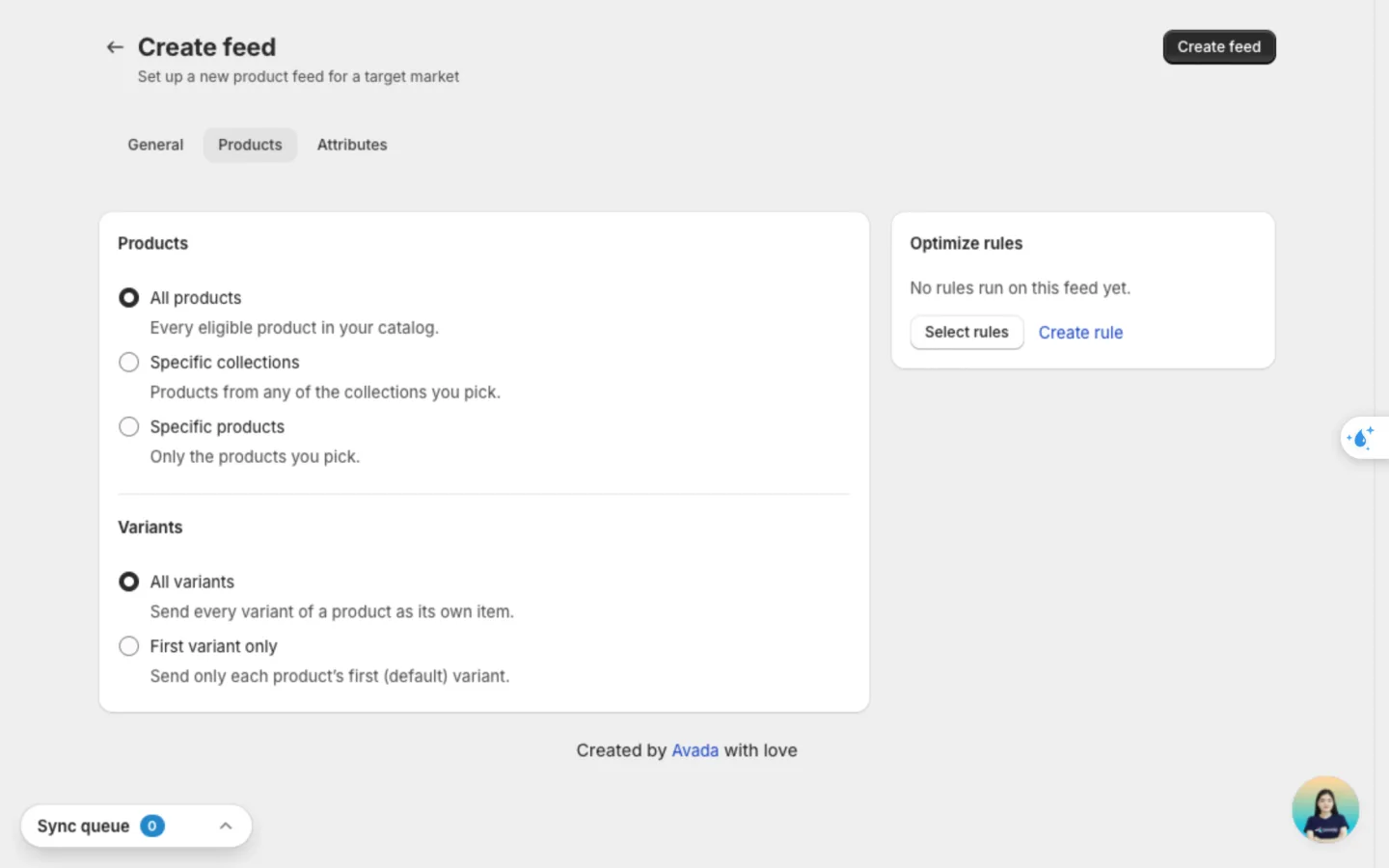
On the Products tab, choose All products, Specific collections or Specific products. Under Variants, choose All variants so shoppers can pick a size or colour, or First variant only.
Check the product details
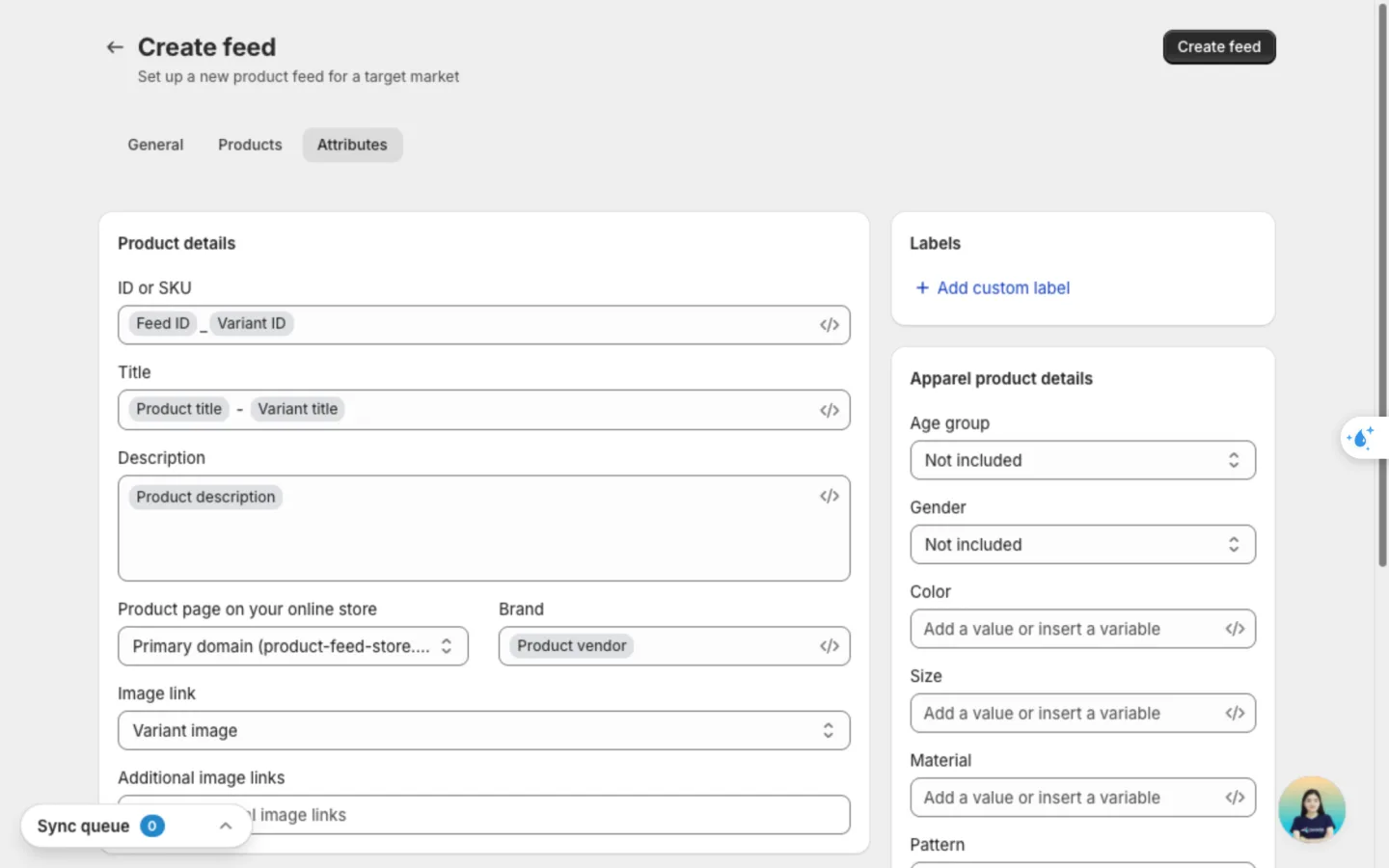
The Attributes tab decides which Shopify detail fills each Meta field. The app fills the common ones for you. See Fields on each tab.
Save the feed
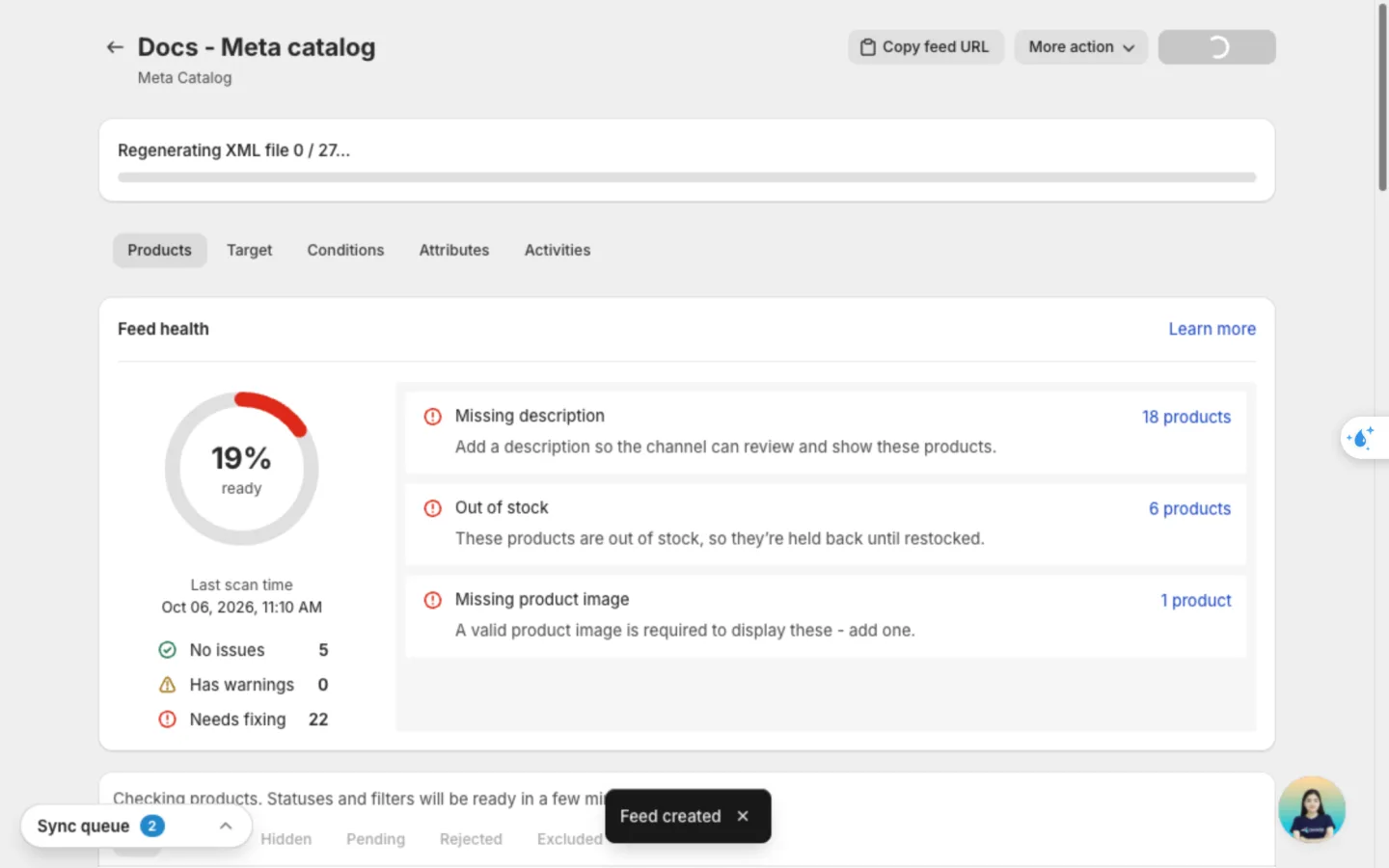
Click Create feed. You'll see Feed created, and the feed page starts building your file. A new feed takes a few minutes.
Check it worked
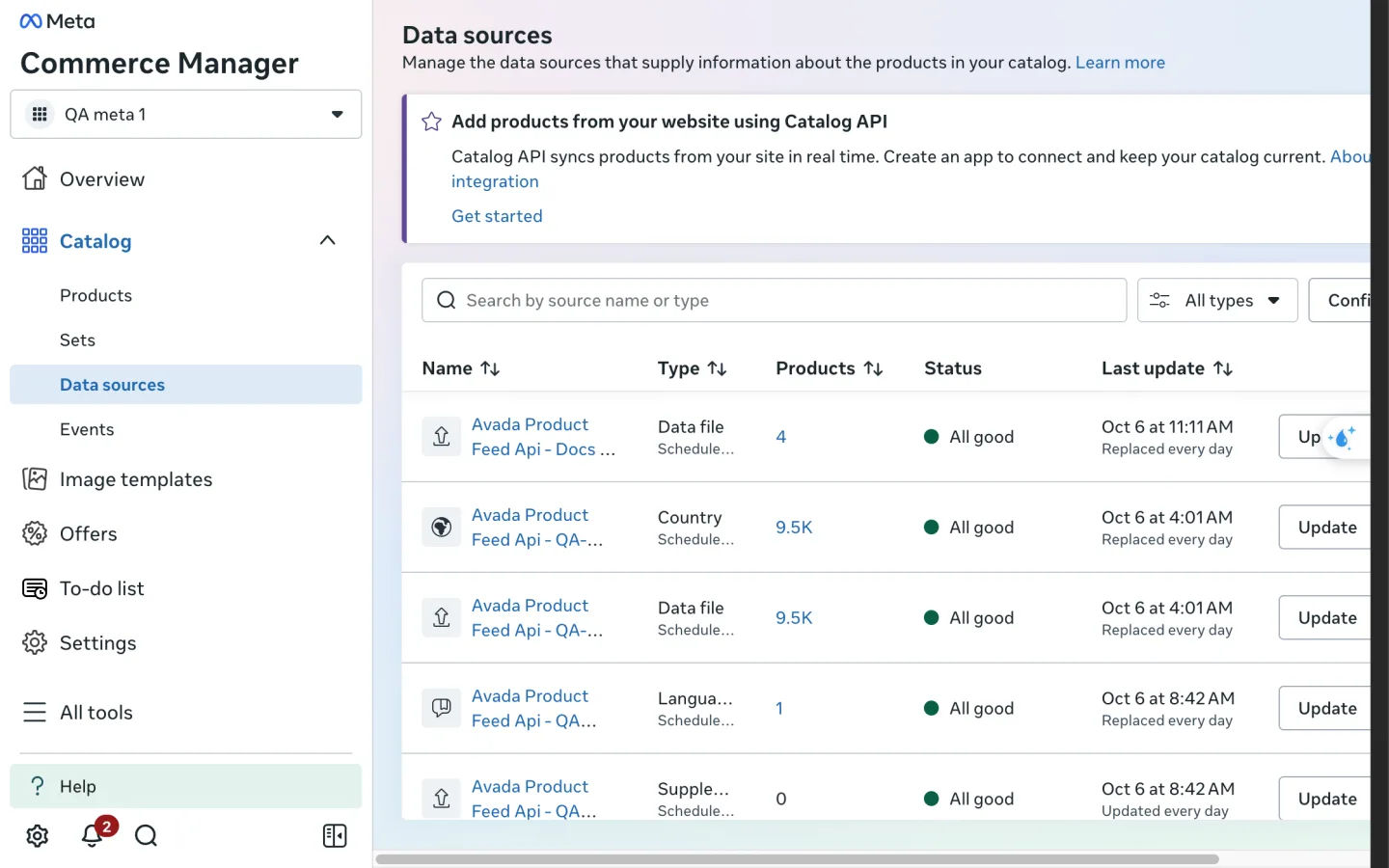
In Commerce Manager, open your catalog and go to Catalog → Data sources. Your feed shows as Avada Product Feed Api - [your feed name], set to update daily.
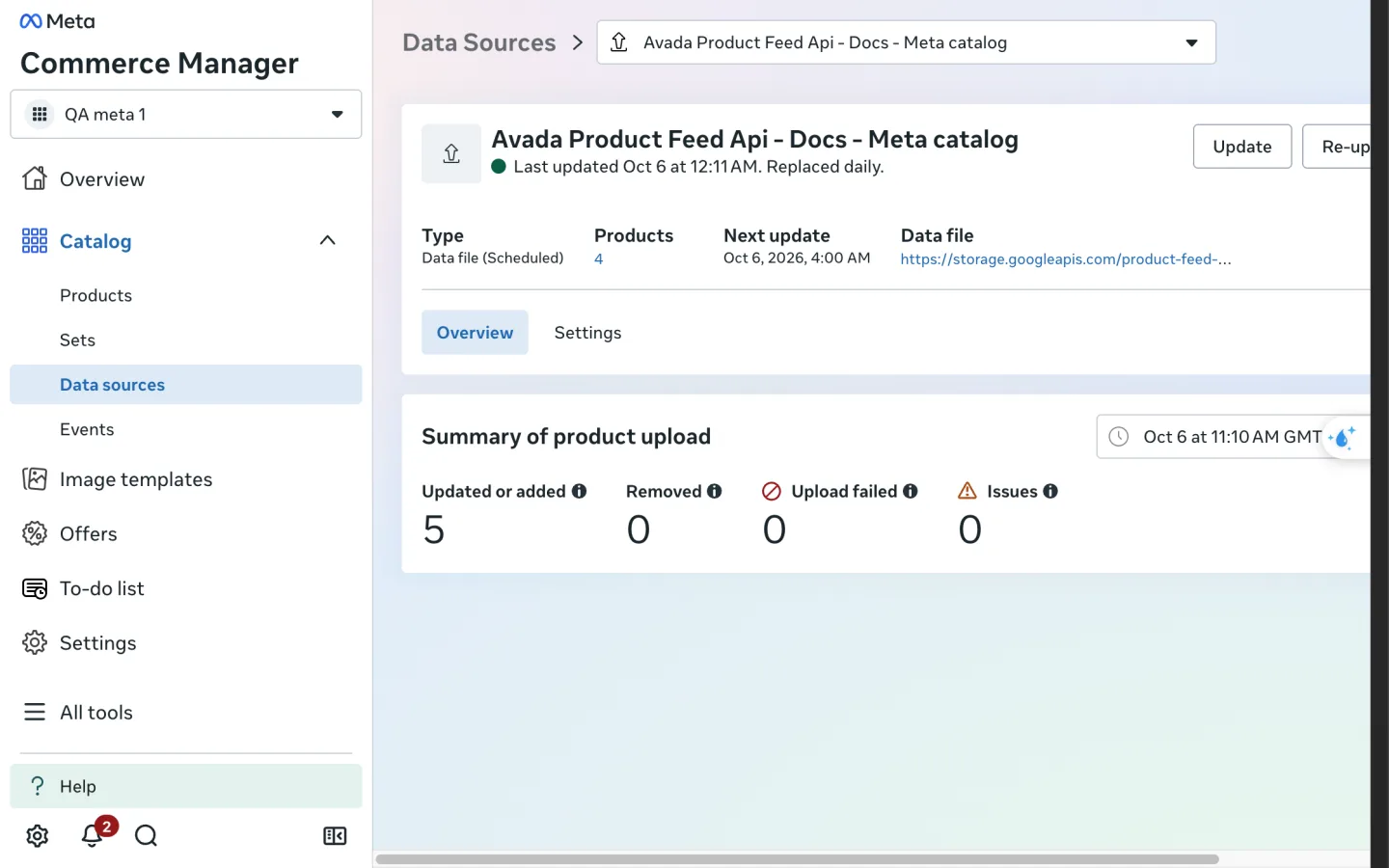
Click it to see the upload summary: how many products were Updated or added, and whether any Upload failed or have Issues.
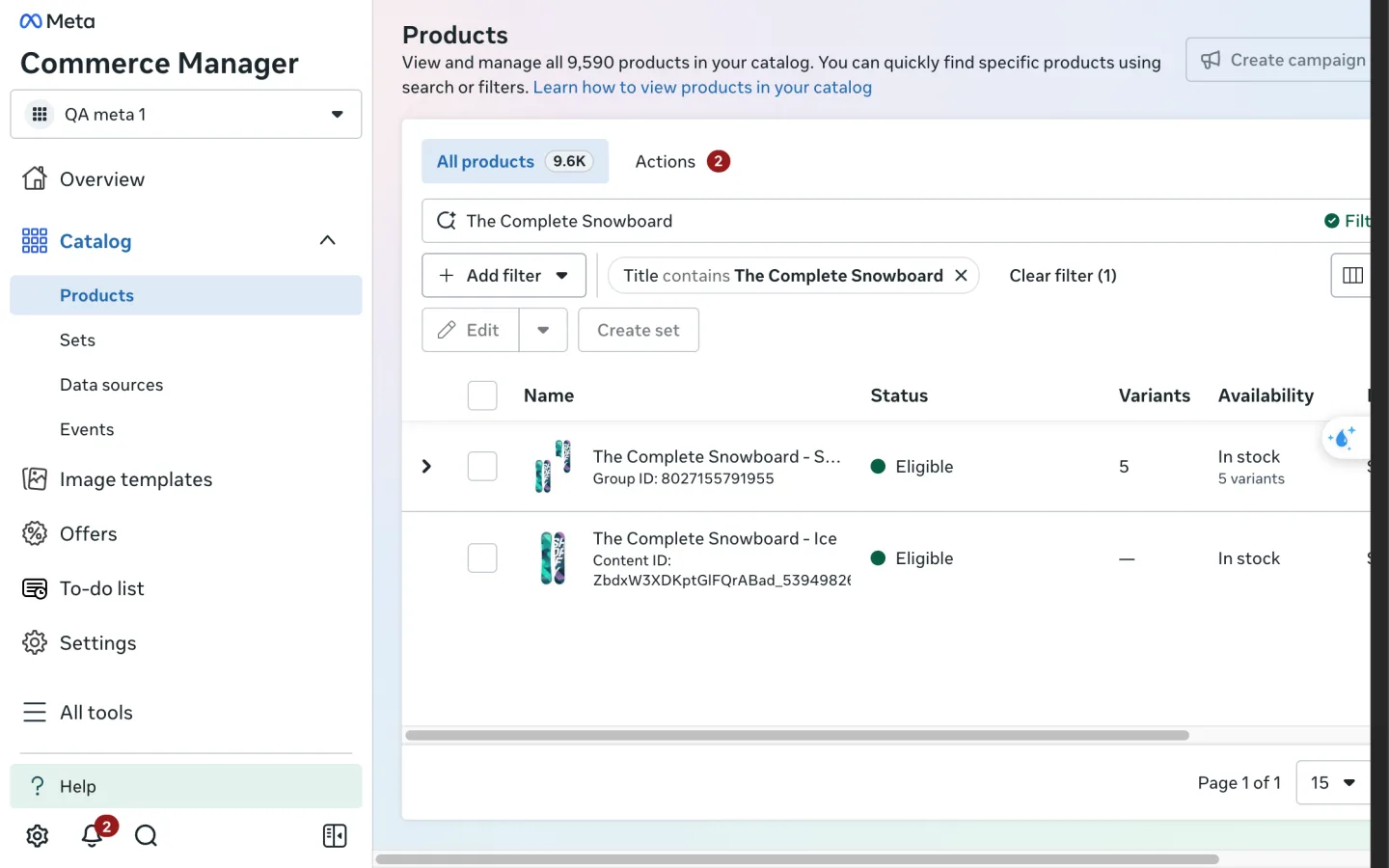
Then go to Catalog → Products. Your products show with their variants, marked Eligible once Meta accepts them.
Only products that pass the app's checks are sent. Follow results on the feed page and fix rejections in Meta product issues. Nothing changes in your Shopify store.
Fields on each tab
General
| Field | What it does | Options |
|---|---|---|
| Feed name | Your own label for the feed | Free text |
| Feed type | Main feed or add-on | Primary - hosts a file your catalog fetches, Localize - override price or text for a market, Supplement - add product attributes to a catalog |
| Meta catalog | Which catalog receives the products | Your catalogs, or Create a new catalog |
| Fetch frequency | How often Meta collects the feed | Daily, Hourly, Weekly |
| Fetch time | The hour Meta collects it | 00:00 to 23:00 in your time zone |
A main Meta feed has no country to pick. It uses your store's main market. For a local price or translated text, add a Localize feed on top. See Create a feed.
Products
| Field | Options |
|---|---|
| Products to list | All products, Specific collections, Specific products |
| Variants | All variants, First variant only |
| Optimize rules | Select rules or Create rule. See Optimize rules. |
Attributes
Each field shows a tag: Required, Recommended or Optional. In a text field, click Insert variable (</>) or type / to add a value that changes per product. You can insert details from these groups: Product (title, vendor, type, description, tags, category path, SEO title, meta description, URL handle), Variant (title, SKU, barcode, price, compare-at price), Shop (name, domain), and Metafield, Variant metafield or Collection metafield.
| Field | What you can use | How to optimize it |
|---|---|---|
| ID or SKU | Feed ID + variant ID by default. Can also use SKU, barcode, product ID, URL handle or a metafield. | Keep the default. It's unique and never clashes. You can't change it after the feed is created. |
| Title | Product title + variant name by default, or any mix of text and variables | Put what shoppers search first: brand + product type + key detail, like {Product vendor} {Product title} - {Variant title}. Don't use all caps or promo text like "Free shipping". |
| Description | Product description by default, or text and variables | Describe the product, not the store. Mention material, use and fit. Products with no description are held back. |
| Product page on your online store | Primary domain by default, or another domain of your store | Pick the domain shoppers buy on. Use the domain shoppers buy on. |
| Brand | Product vendor by default, or text and variables | Use the real brand name, not your store name, unless you make the products yourself. |
| Image link | Variant image (default), Product image 1 to 10, or Design template | Use the photo that shows the exact variant. Turn to a design template for a branded image. |
| Additional image links | Up to 5 of Product image 1 to 10 | Add angles, close-ups and lifestyle shots. Shoppers see them when they open the product. |
| Google product category | Shopify category (mapped) by default, or Custom category | Pick the most specific category you can. "Shoes > Sneakers" beats "Apparel". |
| Product type | Your Shopify product type by default, or text and variables | Use your own category path, like "Women > Shoes > Sneakers". It helps you split ad campaigns. |
| Condition | New, Refurbished, Used (like new), Used (good), Used (fair), or a metafield | Leave New unless you sell second-hand or refurbished items. |
| GTIN, UPC, EAN, JAN or ISBN | Variant barcode by default, or a metafield | Fill it for every branded product. It's the strongest signal for approval and matching. |
| MPN | Variant SKU by default, or variant barcode, or a metafield | Use the maker's part number when there's no barcode. |
| These are one-of-a-kind or vintage products with no identifier | Tick box | Tick it for handmade, custom-made or vintage items. GTIN and MPN turn off. |
| Custom label | Up to 5 labels, text and variables | Group products for bidding: "bestseller", "on sale", "high margin", "season". Shoppers never see them. |
| Age group | Newborn, Infant, Toddler, Kids, Teen, Adult, All ages, or Not included | Set Adult for most stores. It helps Meta show items to the right shoppers. |
| Gender | Male, Female, Unisex, or Not included | Helps Meta show items to the right shoppers. |
| Color | A fixed value or a metafield | Use a plain colour name shoppers type, like "Navy", not a code. |
| Size | A fixed value or a metafield | Match your size chart, like "M" or "42". |
| Material | A fixed value or a metafield | Name the main fabric, like "Cotton". It helps searches like "linen shirt". |
| Pattern | A fixed value or a metafield | Name it when it matters, like "Striped" or "Floral". |
Price, sale price and stock always come from Shopify, so they're not fields in the form. They stay correct on their own.
Optimize your feed for Facebook and Instagram
Shoppers meet your products in a scrolling feed, mostly on a phone. A product wins on its image and the first words of its title. Work in this order:
- Clear what blocks the upload. Open the feed page. Feed health lists the blockers, like Missing description or Out of stock. Products with a blocker are held back.
- Use a 4:5 image. It fills more of the phone screen than a square. Under Image link, choose Design template and Image format 4:5. See Image templates.
- Keep titles short. Meta cuts long titles in ads and shops. Lead with the product name and the one detail that sells it.
- Send all variants. With All variants, shoppers pick a size or colour in the shop, and ads can show the exact variant someone viewed.
- Pick Hourly if stock moves fast. Ads stop showing sold-out items sooner, so you don't pay for clicks you can't fill.
- Use custom labels to build product sets. Label products "bestseller" or "on sale", then build a set in Commerce Manager and run ads on just that set.
Good to know
- You can't change the feed type, catalog or fetch schedule after saving. Use Duplicate in the feed's row menu to copy a setup.
- Changes reach Meta at the next fetch. Click Update feed on the feed page to rebuild the file sooner.
- Out-of-stock products are held back from the file until you restock them.
- If the compare-at price is higher than the price, Meta shows the product on sale.
- Each Meta feed can have one supplement feed.
- Products from other feeds or apps can sit in the same catalog. Each one shows in Commerce Manager under its own data source.
FAQs
Which catalog should I pick?
The one your ads already use. Ads that show products from a catalog keep working when you add the feed there. Pick Create a new catalog only if you're starting fresh.
How long until my products show on Facebook and Instagram?
Meta processes the file within minutes to a few hours after each fetch. Products show as Eligible in Catalog → Products once Meta accepts them.
Commerce Manager shows fewer products than my store. Why?
The app only sends products that pass its checks. Out-of-stock products and products with no description or image are held back. Open the feed page, click Excluded, and fix the reasons under Feed health.
Can I show local prices in another country?
Yes. Create a Localize feed with Country - price & availability on top of your main Meta feed. Use Language - title & description for translated text.
Why does a Meta feed ask for a Google product category?
Meta reads Google's category list too, so one field serves both. The app fills it from your Shopify category.
Will the feed change my Shopify products?
No. The app only reads your products. Edits in the feed never change Shopify.
Still have questions?
Chat with us from the app, any time.