Feed details
Instead of digging through Merchant Center or Commerce Manager for rejected products, see what blocks each product on one page and fix it in a few clicks.
What is the feed page?
The feed page shows how one feed is doing on Google or Meta: how many products can show in ads, which ones were rejected, and why. Open it from Manage feed by clicking a feed's name.
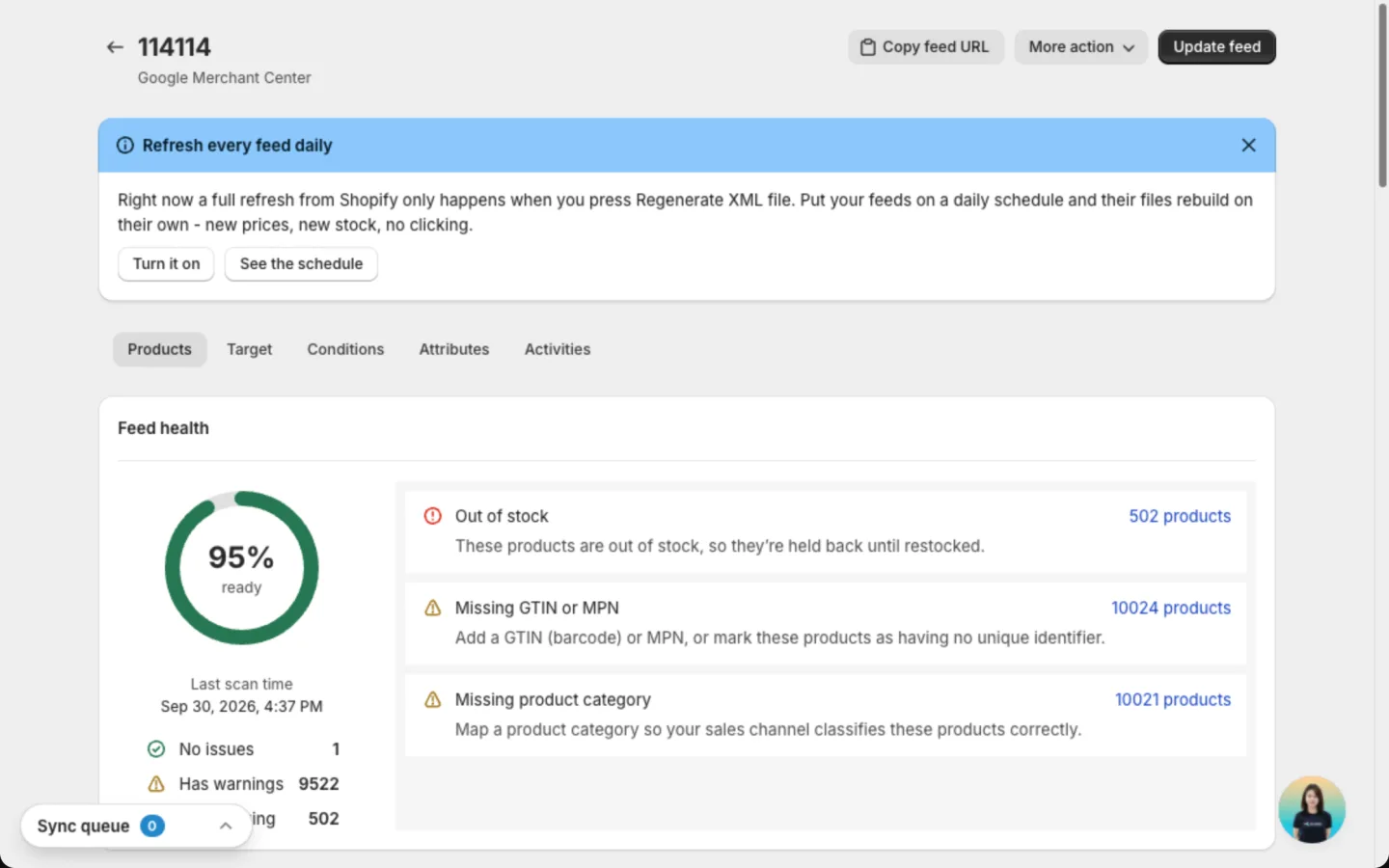
The buttons at the top of the page:
| Button | What it does |
|---|---|
| Update feed | Rebuilds the feed file with your latest products right away. Google or Meta picks up the new file at its next fetch |
| Copy feed URL | Copies the link to the feed file. It works once the file is built |
| More action | View in GMC (or View in Commerce Manager on Meta), Duplicate feed, Export CSV and Delete feed |
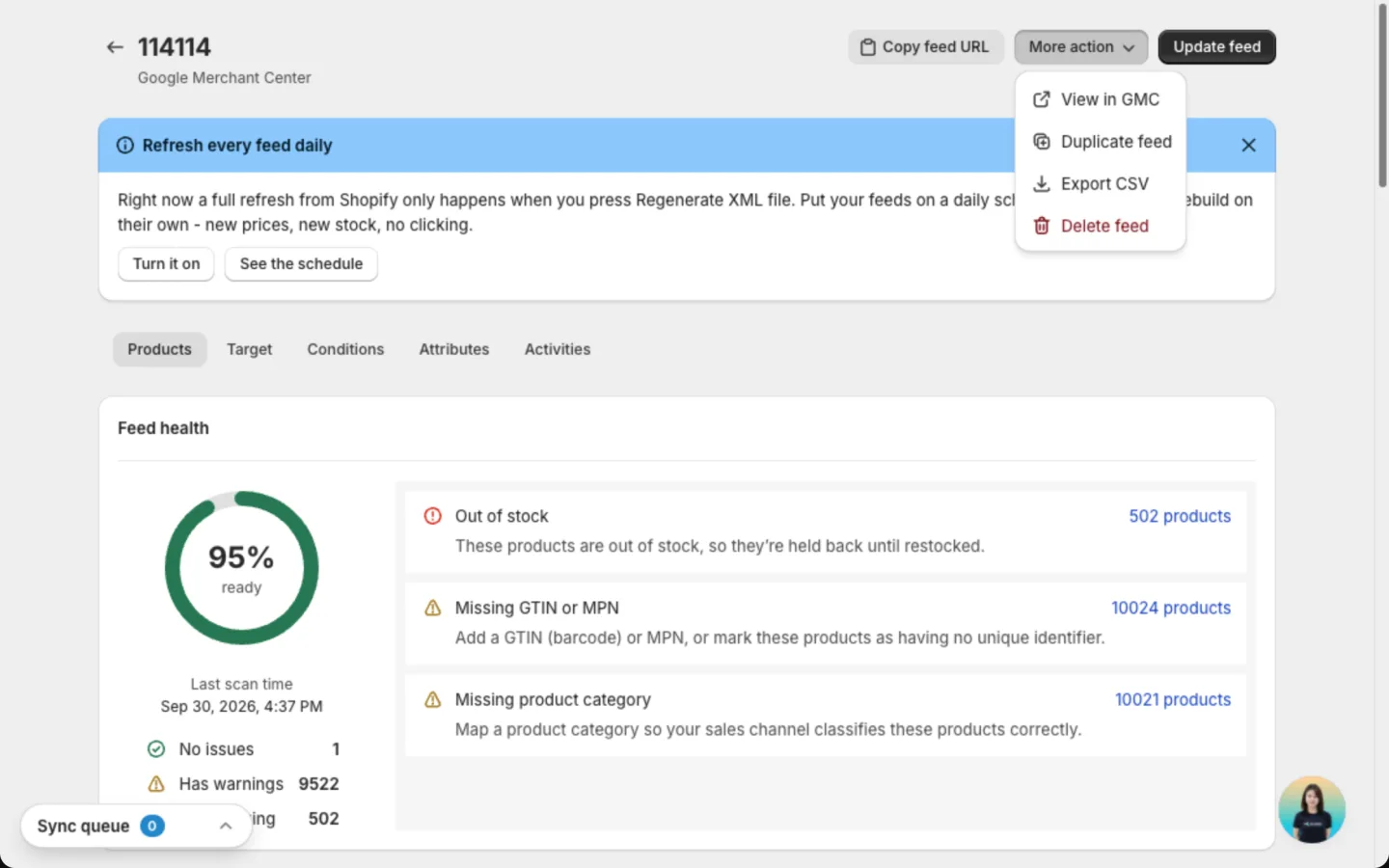
Export CSV downloads the products of the feed you have open as a spreadsheet file. Handy for a quick review or to share with your team.
While an update runs, the Sync queue box in the corner of the app shows its progress. To refresh everything the app reads from Shopify, use Catalog sync.
If the feed uses a language other than your store default, click Sync translations to bring in your translated text from Shopify. Publish the language in Shopify first.
Read feed health
The Feed health card sits on the Products tab. The ring shows the share of products with no blocking problem. The higher it is, the more products can show in ads.
- No issues: ready to show.
- Has warnings: can show, but may perform worse.
- Needs fixing: blocked until you fix it.
The list next to the ring shows the top issues. Click the product count on an issue to see only those products.
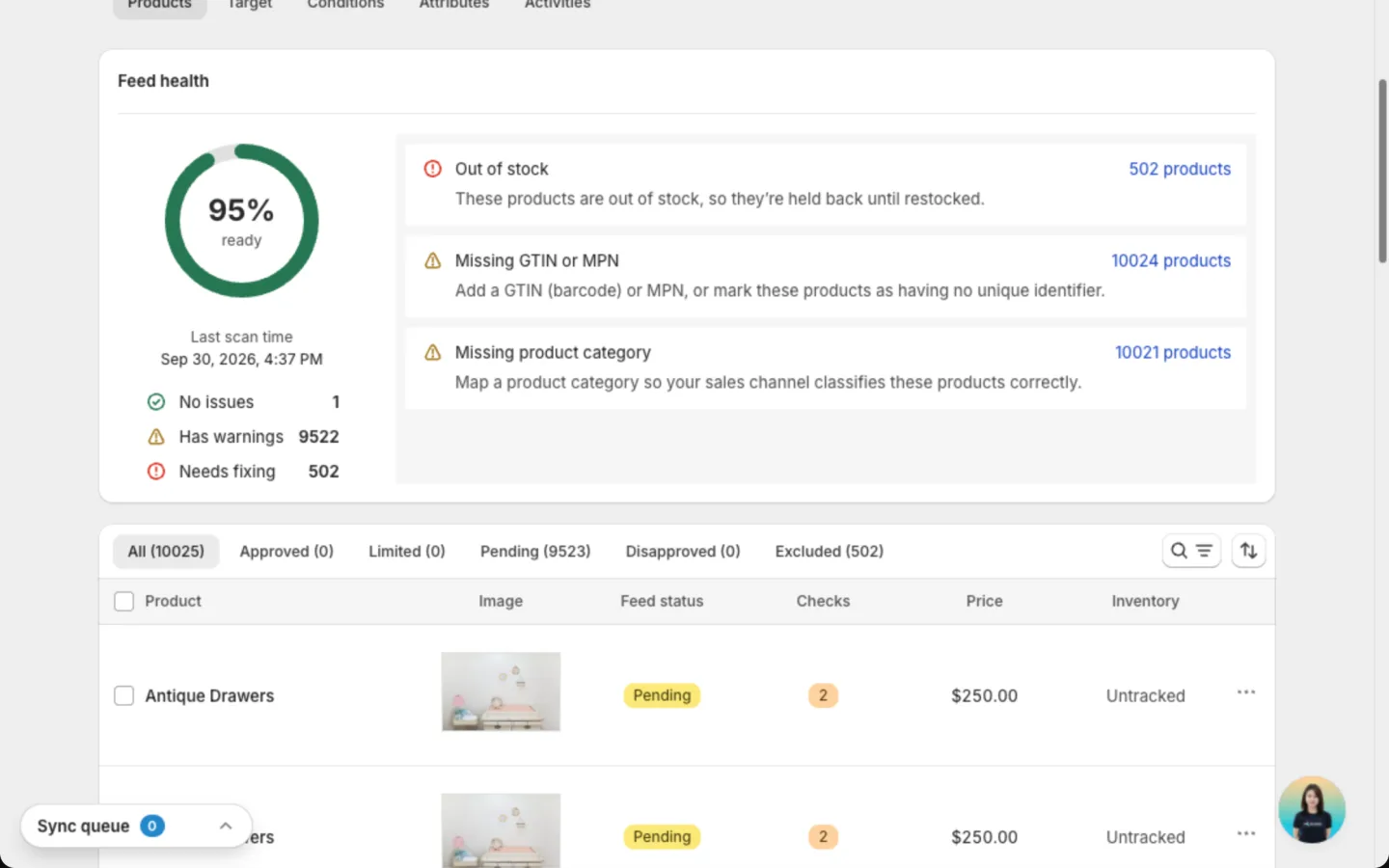
To load the latest results from Google or Meta, hover over the ring and click Rescan. This doesn't rebuild your feed file. On an Any platform feed, the score comes from the app's own checks, and Rescan runs them again.
Review your products
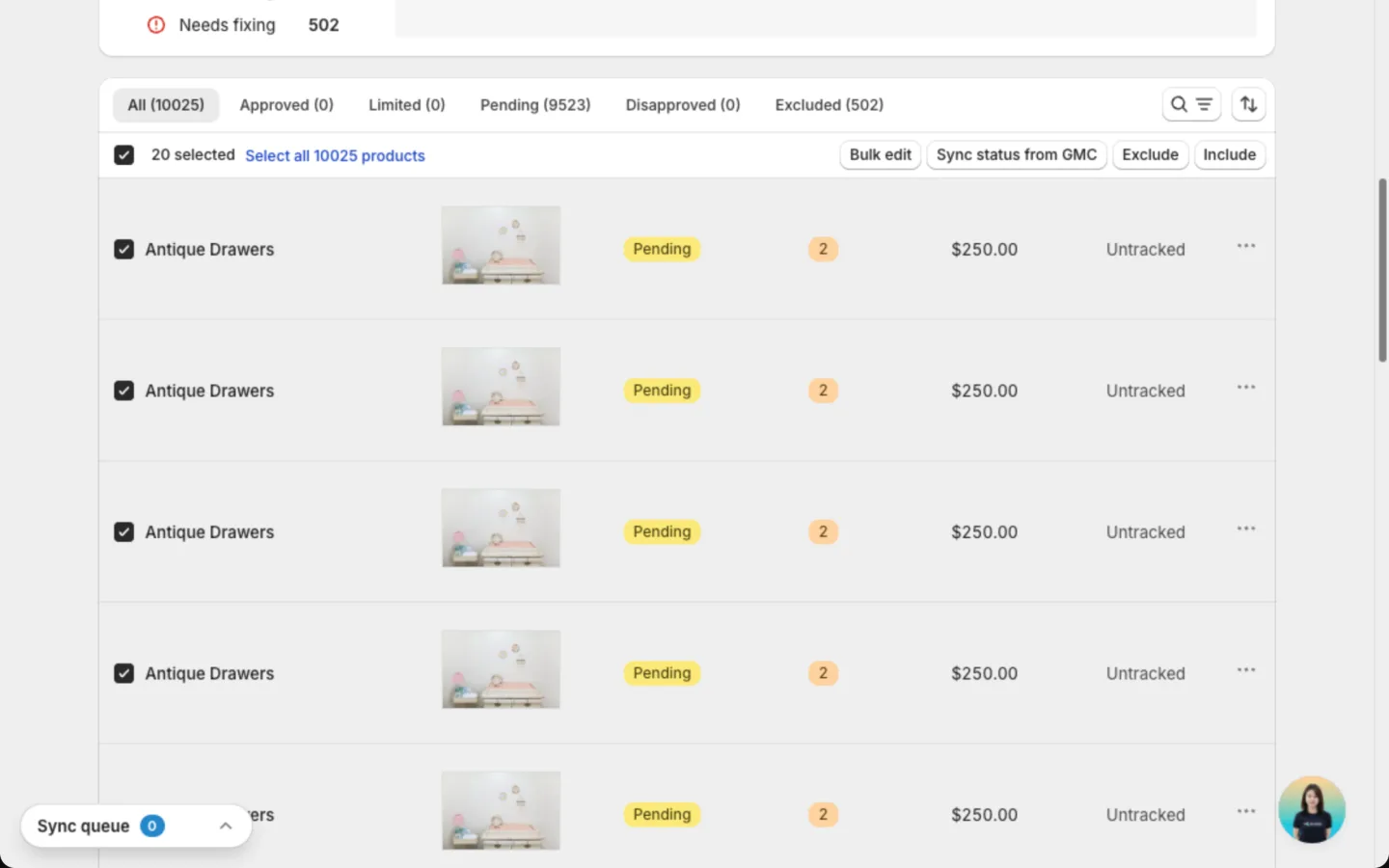
The Products tab lists every product in the feed. Start with the rejected tab to see what needs attention.
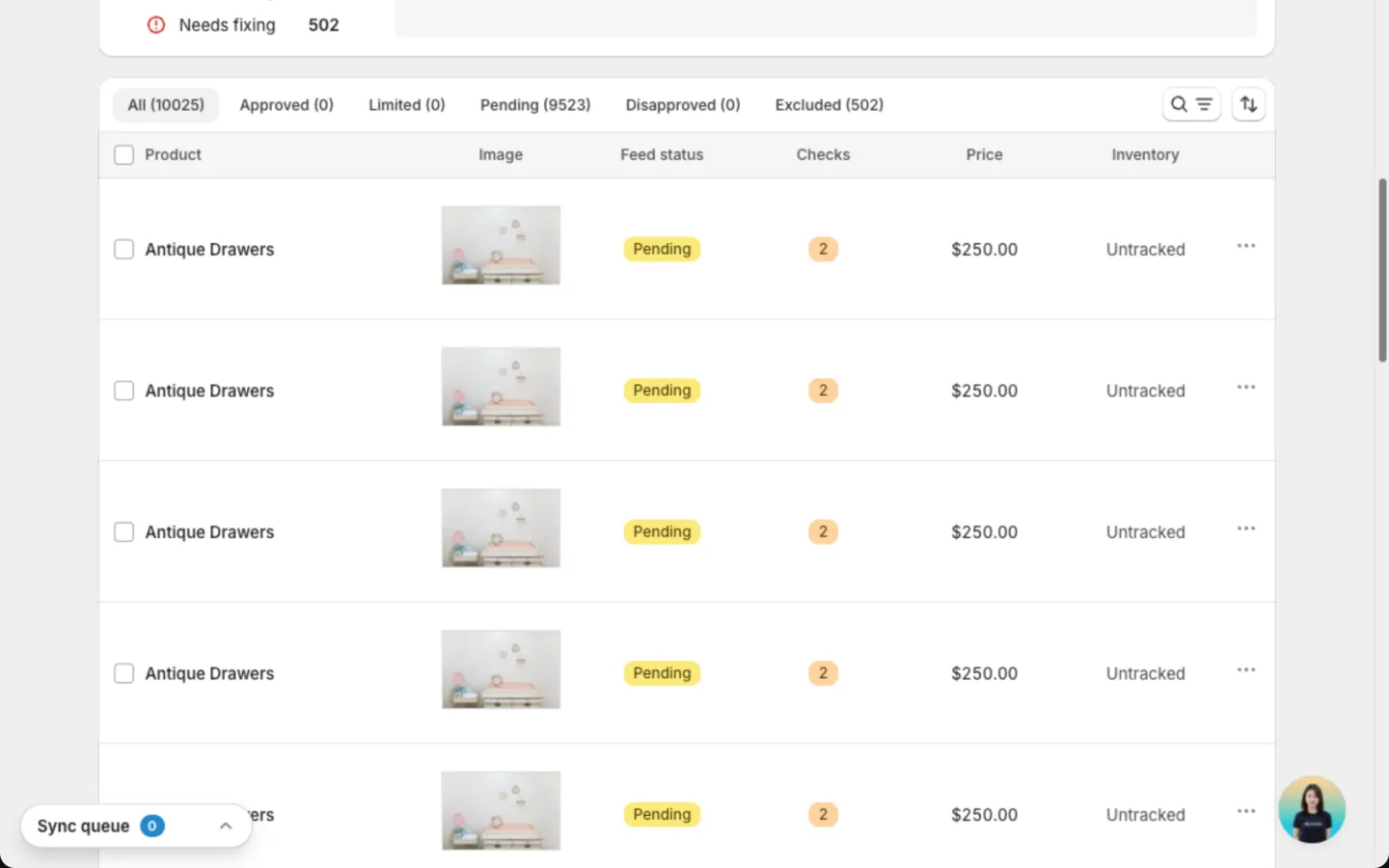
| Google tab | Meta tab | What it means |
|---|---|---|
| Approved | Active | Showing to shoppers |
| Limited | Hidden | Listed, but shown less or not at all |
| Pending | Pending | Google or Meta is still reviewing |
| Disapproved | Rejected | Blocked. Needs a fix |
| Excluded | Excluded | Held back by you, or because it is out of stock |
An Any platform feed has three tabs: All, Included and Excluded. The app can't see approval results from other platforms.
Narrow the list with the filters:
- Availability: in stock or out of stock.
- Issues: only products with a problem.
- Issue type: one specific problem, like a missing description.
- Fix type: Edit in Shopify (change the product in Shopify) or Manual fix (type the value in the app).
You can use Issue type or Fix type, not both at once.
Act on products
Each row's three-dot menu has View & edit, and Exclude from feed or Include in feed.
Select several products to use Bulk edit, Exclude or Include. Exclude takes the products off the channel. Sync status from GMC or Sync status from Meta loads the latest results for the whole feed.
Edit a product
Click a product's row, or choose View & edit, to open it. The window has two columns, so the problem and the field to fix sit side by side.
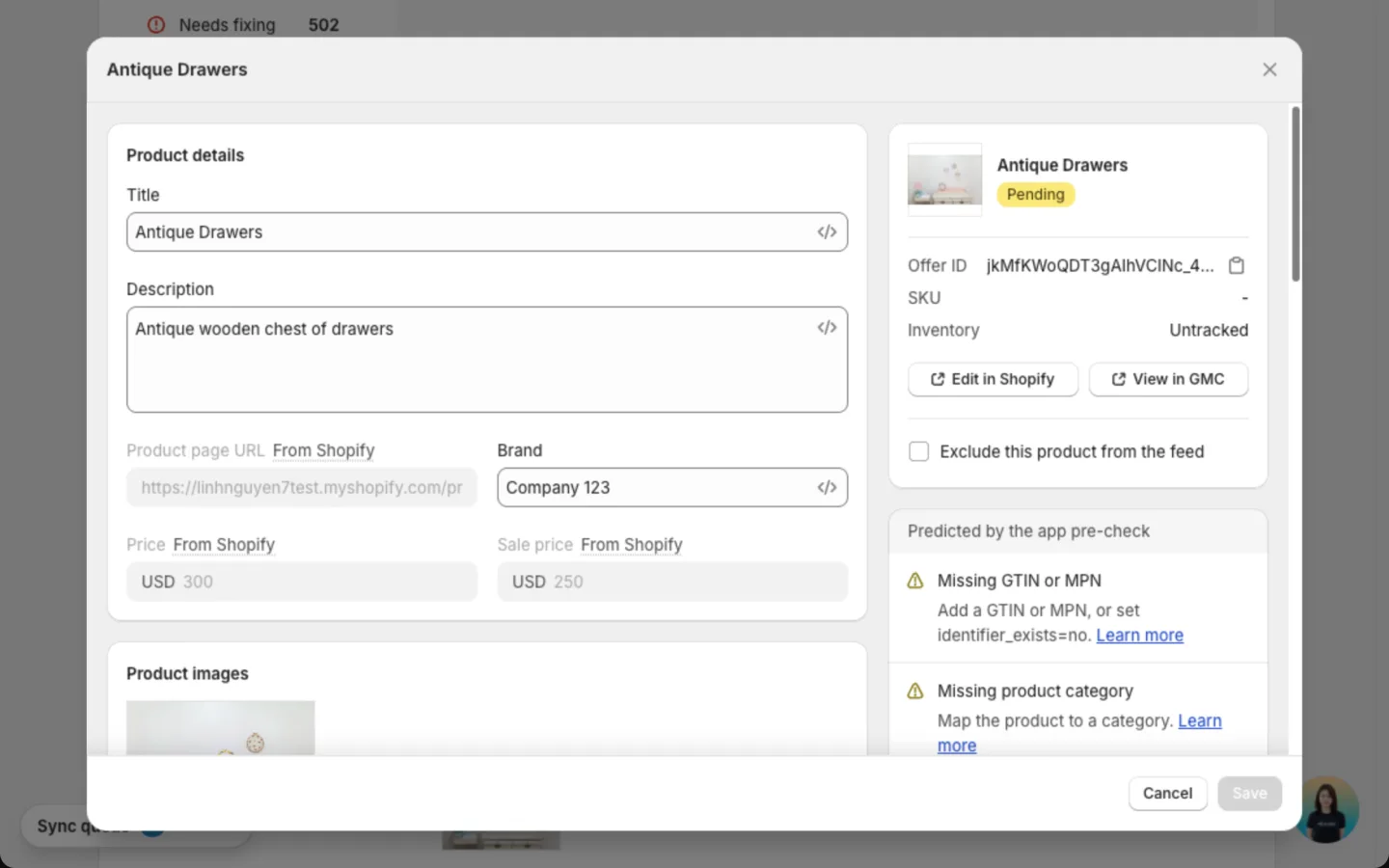
- Left column: the product's fields, grouped the same way as the feed's Attributes tab: Product details, Product images, Category & identifiers, Labels, Additional details and Apparel product details.
- Right column: the product photo, its status, Offer ID, SKU and Inventory. Below are the issues: errors reported by Google or Meta, and Predicted by the app pre-check, the problems the app expects before the channel reviews the product. Click Learn more on an issue to see how to fix it.
- Edit in Shopify opens the product in Shopify. View in GMC (View in Meta on Meta) opens it on the channel.
- Tick Exclude this product from the feed to hold the product back.
Fix the flagged field, then click Save.
Fields marked From Shopify, like the product page link, price and sale price, can't be edited here. They always match your store, so they are always correct. To change one, click Edit in Shopify.
Edits here change the feed only. Your Shopify product stays the same. Save stores the edit but doesn't update the feed file. Click Update feed to add it. Google or Meta sees it at the next fetch.
How to fix rejected products
Find the rejected products
Open the feed and go to the Products tab. Click Disapproved (Rejected on Meta), or click an issue in Feed health.
Read the issue
Open a product with View & edit. The issue at the top says what Google or Meta needs.
Fix it
For an Edit in Shopify issue, change the product in Shopify. For a Manual fix issue, type the value in the app and click Save.
Send the fix
Click Update feed at the top of the page. Google or Meta picks up the fix at its next fetch.
Check it worked
Give Google or Meta time to review the change. Then hover over the health ring and click Rescan. Fixed products move to Approved (Active on Meta).
Google and Meta review changes on their side. A fixed product can stay in Pending for a while before it is approved.
Common issues
These are the ones most stores meet first. For every issue Google can report and how to fix it, see Google product issues.
Missing description
The product has no description. Google and Meta can't review a product without one, so it can't show in ads.
Out of stock
The product has no stock in Shopify. The app holds it back so you don't pay for ads on products shoppers can't buy.
Images weren't rendered
The feed uses an image template, but some product images couldn't be created. A banner shows at the top of the feed page.
Account not connected
The feed can't reach Google or Meta. You see Connect your Google account, Select a Merchant Center account or Reconnect your Meta Business account at the top of the page.
Change the feed's settings
The other tabs on the feed page hold its settings:
| Tab | What it shows |
|---|---|
| Target | Where the feed publishes and how Google or Meta collects it: Connection method is URL feed, File format is XML feed, plus the Fetch frequency. These are view only. The Market card lists the feed's countries, each with its flag, plus its language and currency. Click the pencil on Basics to rename the feed |
| Conditions | Which products and variants the feed includes |
| Attributes | Which Shopify detail fills each Google or Meta field. Click the pencil on a group to edit it |
After an edit, click Save in the save bar.
Track past runs
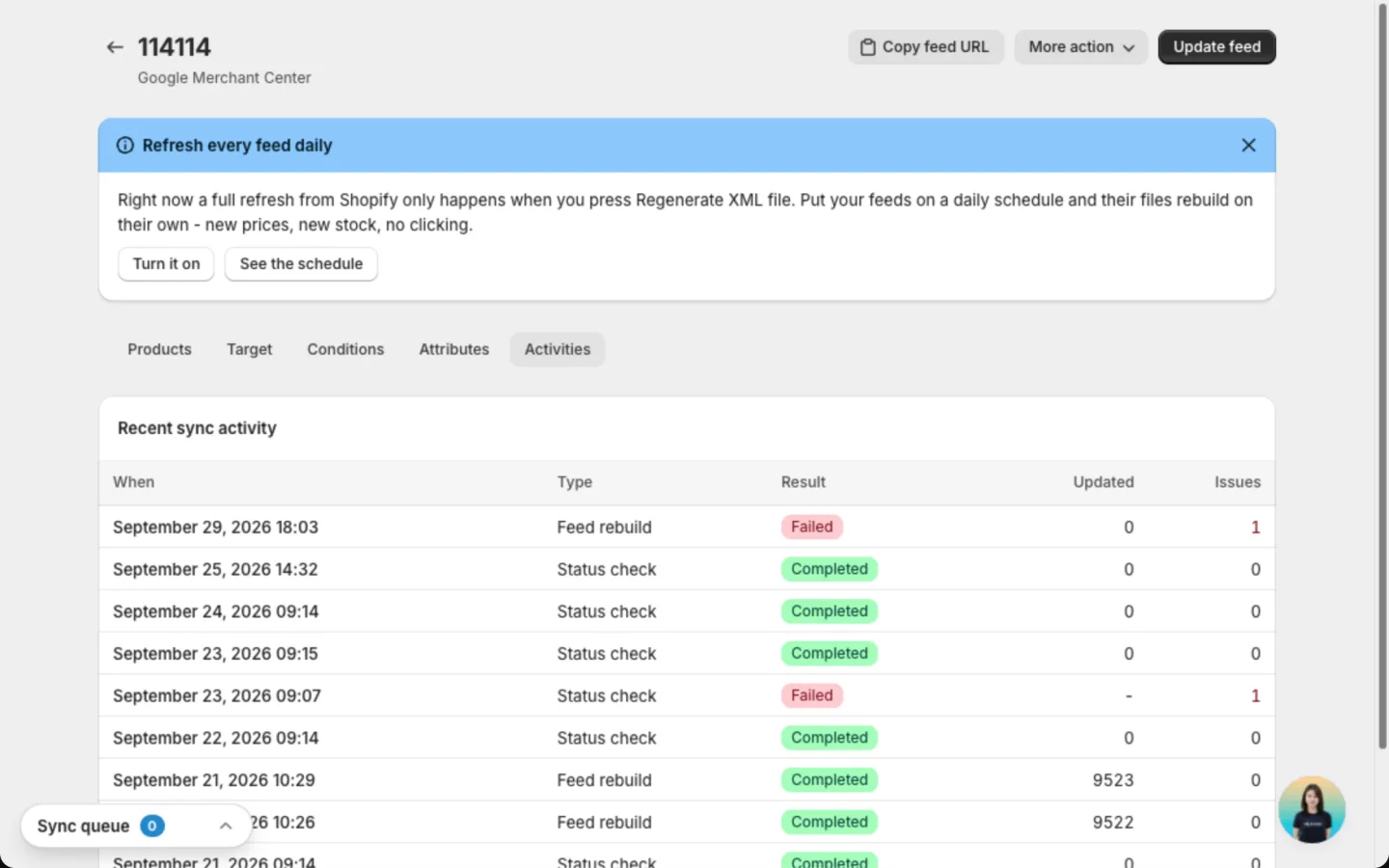
The Activities tab lists the last 10 runs, kept for 30 days. Each shows When, Type, Result, Updated and Issues. A run can be a product sync, a file rebuild, an image render, a results check, or a clean-up of removed products. Runs started from an AI assistant show an AI assistant badge.
FAQs
Do edits on the feed page change my Shopify products?
No. Edits change only what Google or Meta sees in your feed. Your Shopify store stays the same.
I fixed a product. Why is it still rejected?
Google or Meta hasn't reviewed it yet. Make sure you clicked Update feed after saving. The channel sees the fix at its next fetch. Wait for the review, then click Rescan on the health ring.
Why can't I edit price or availability?
They always come from Shopify, so your ads never show a wrong price or sell out-of-stock products. Change them in Shopify, then click Update feed.
What is the difference between Update feed and Rescan?
Update feed rebuilds the file Google or Meta collects. Rescan only fetches their latest approval results.
Still have questions?
Chat with us from the app, any time.